This guide shows you how to:
- create a competence type
- organise your types with categories
- set up a notification before expiry
You'll find everything under Competence in the menu (you must be an administrator).
For an expiry notification to be sent, three things must be in place:
- The competence type has a number of days for the notice (more than 0)
- At least one receiver is selected
- The receiver has an email address on their user
Step 1 – Open Competence
Go to Competence in the menu and select the "Competence" tab. Here you see all the competence types in your company. Top right you'll find the buttons you need: "Manage categories", "Settings" and "Create competence type".

The Competence tab with the Manage categories, Settings and Create competence type buttons
Type vs. record: A *competence type* is the template (for example "First aid course"). When an employee actually holds it, it is added as a *record* on that person – with an issue date, an expiry date and any attachments. This guide is about setting up the types themselves.
Step 2 – Create a competence type
Click Create competence type. You'll get this form:
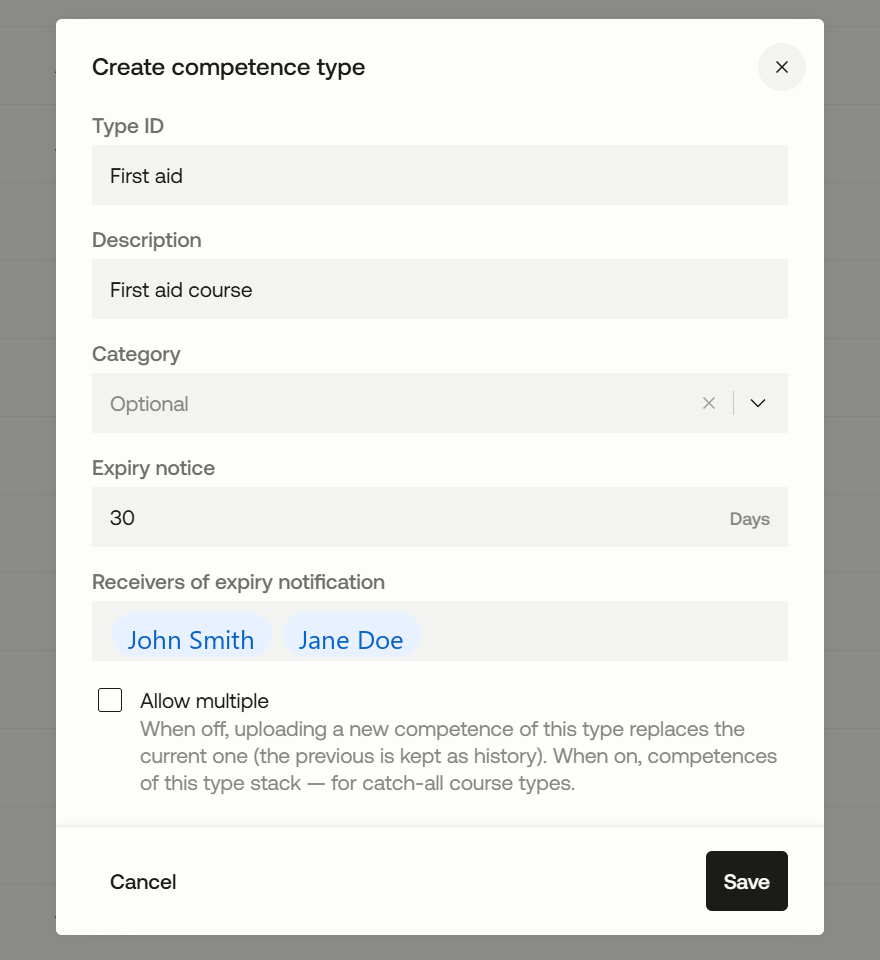
The form for creating a competence type
The fields mean:
- Type ID *(required)* – a short name for the type, for example "First aid".
- Description *(required)* – a fuller name, for example "First aid course".
- Category *(optional)* – groups the type. See the next step about categories.
- Expiry notice (Days) – how many days before expiry the notification is sent, for example 30. If it is 0, no notification is sent for this type.
- Receivers of expiry notification – who should be notified for this specific type. This comes in addition to the shared receivers you set in Step 4.
- Allow multiple – controls what happens when an employee uploads the same type again:
- Off: the new record replaces the previous one (the old one is kept as history). Good for cards that are renewed, such as safety cards.
- On: the records stack on top of each other. Good for general courses where several can be held.
Click "Save" when you're done.
Step 3 – Organise with categories
If you have many competence types, categories make them easier to find. A category is a group, for example Certificates, Competence certificate or Course.
Click "Manage categories" to create and edit them:
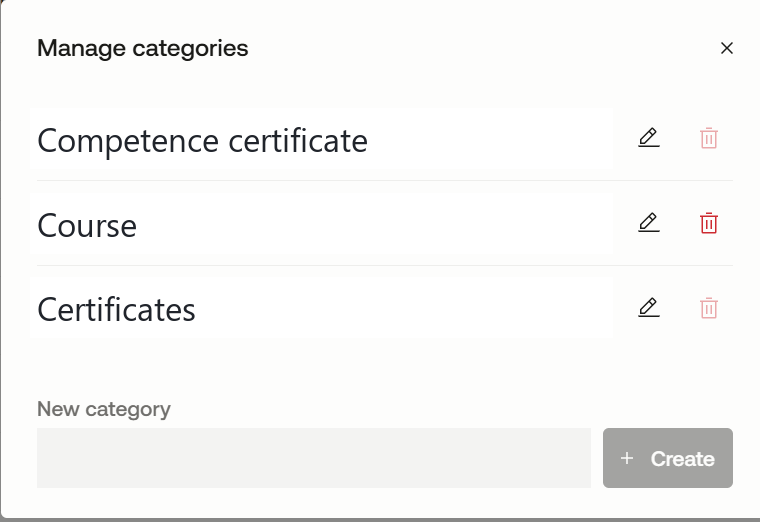
Manage categories with the list and the "New category" field
- Create: type the name in the "New category" field and click "Create".
- Edit or delete: use the pencil and trash icons next to each category.
Once a category exists, you link it to a type using the Category field in the form from Step 2.
The categories then appear as filters at the top of the Competence page (All, Competence certificate, Course, Certificates …) and in the Category column – so it's quick to find your way around.
Step 4 – Choose who gets the notification
The easiest way is to choose receivers for all competences in one place. Then you don't have to do it on each type.
- Click "Settings".
- Type the name in the Receivers of expiry notification field. You can add several people.
- Click "Save".
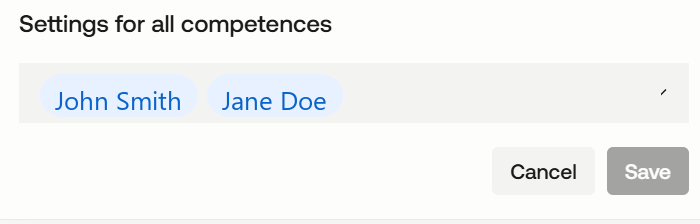
Settings for all competences with the Receivers of expiry notification field
Tip: Add your HSE manager and an administrator here. Then they get notifications for all types, and you have little to maintain. If one person only needs notifications for *one* type, add them on that type instead (Step 2) – it comes in addition.
Step 5 – Check the receivers' email
The notification is sent as email. A receiver without an email address gets nothing.
- Go to "Users", open each receiver, and check that there is an email address in the Email field.
- If it's missing, add it and save.
The user card with the Email field filled in
ℹ️Frequently asked questions
Who gets the notification?
The people you added as receivers (Step 2 and Step 4). They get an email a set number of days before expiry, with the employee's name, which competence it concerns and the expiry date.
Does the employee get notified too?
Yes. The employee also gets a reminder inside the Ditio app about their own competence that is approaching expiry.
I'm not getting a notification – what do I check?
That Expiry notice is more than 0 days on the type, that the competence has an expiry date, and that the receiver has an email.
Do I have to use categories?
No, category is optional. But it keeps things tidier when you have many types.
Do I have to add receivers on every single type?
No. Add them under Settings (Step 4) once, and it applies to all types.
❓ Have more questions?
Check out our help center: Help center
Or contact Ditio Support:
📞 +47 941 47 041
📧 support@ditio.no