Two things must be in place for a notification to be sent:
- At least one recipient is selected (see the steps below).
- The recipient has an email address registered on their user — without an email address, nothing is sent.
Who can set this up? The setup below is only visible to superuser and above. A regular user sees the ⋮ menu on the project row, but does not get the "Project settings" option.
Project level — notification for a single project
You reach a project's notification setup via a ⋮ menu (three dots) on the far right of the project row. It is easy to miss:
- Go to Checklists in the menu.
- Find the project in the list and click the ⋮ (three dots) on the far right of the row.
- Select Project settings.
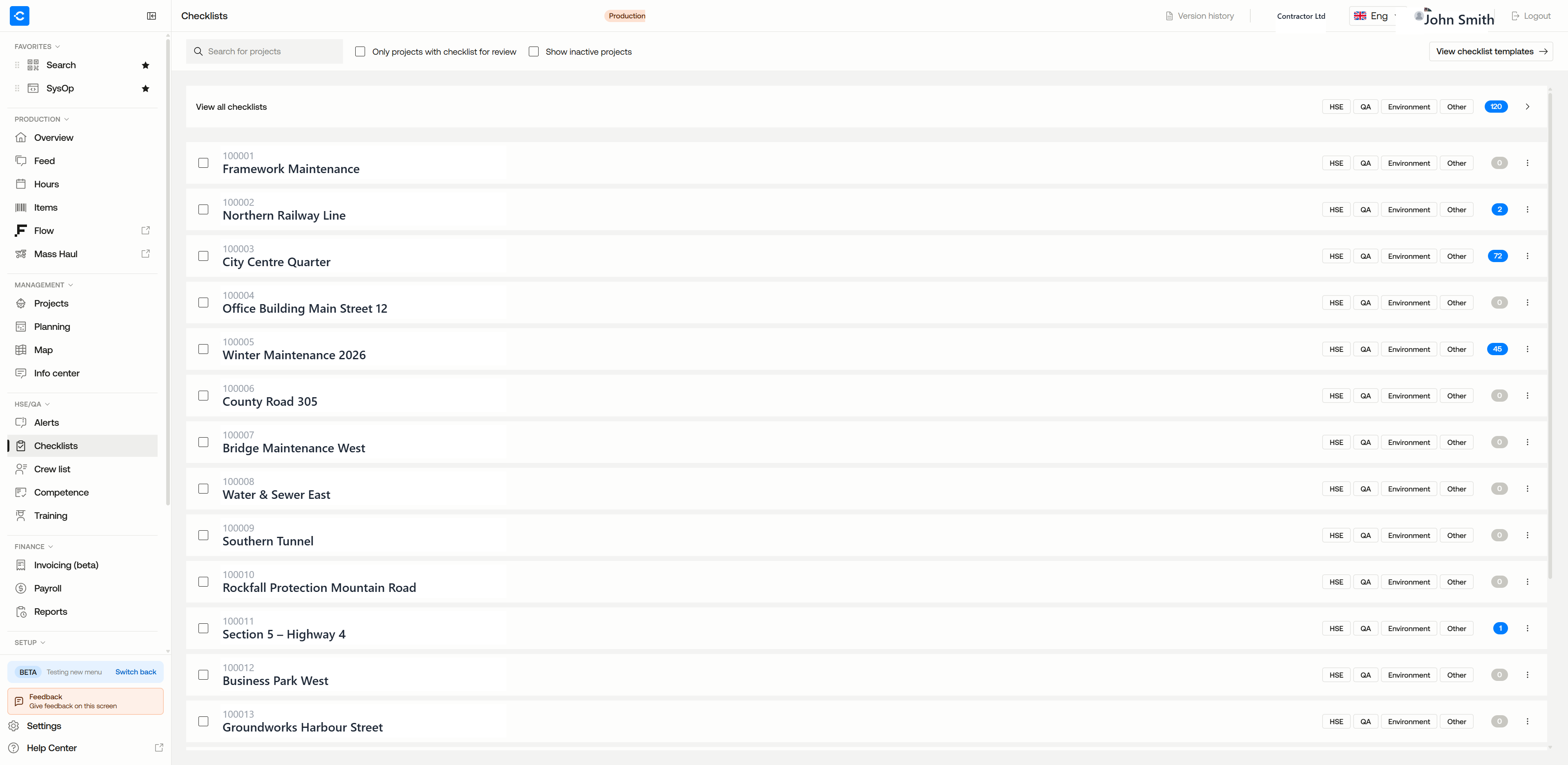 Image 1 — where the ⋮ is on each project row, see red markings
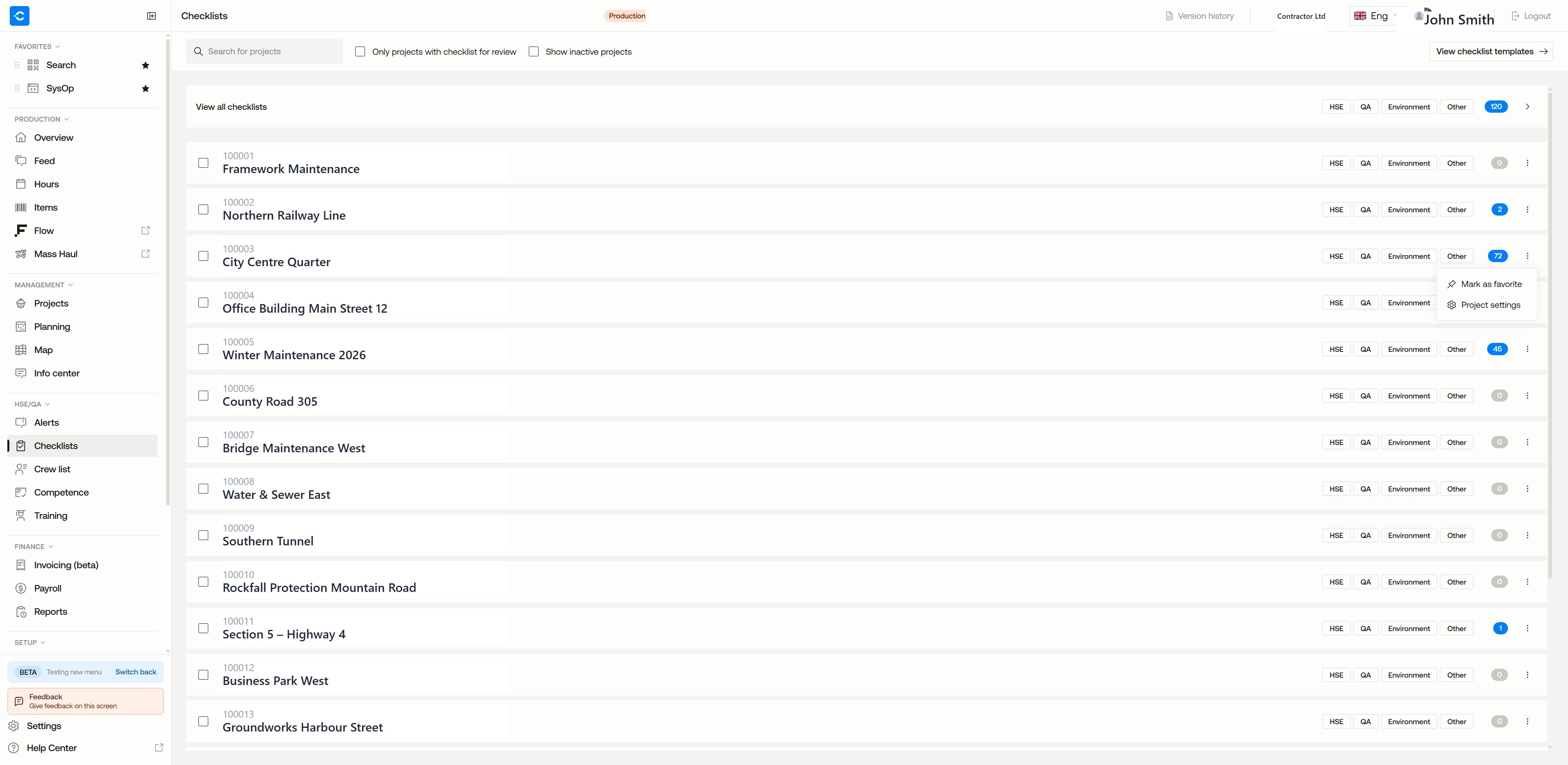 Image 2 — ⋮ opened, the "Project settings" option
Inside Project settings you have two ways to choose recipients:
A) Receivers for all checklists in the project (easiest)
At the top you find the field "Receivers of all checklists in the project". Users you add here get an email whenever any checklist is submitted in the project. This field applies only to this project — there is no company-wide "receivers of all checklists" setting.
B) Responsible for a specific template
If you want someone to be notified only about one specific checklist, set a Responsible on that template: click the pencil icon ✏️ on the template row under "Active templates", and choose the recipient in the Responsible field in the Template settings dialog. (The template row also has a separate "Customize for project" button — it uses the same pencil icon but is a separate function for editing the template itself for the project, not part of the Template settings dialog.)
Note: A "Responsible" set at project level does not apply to machine checklists — for those, notifications are governed by the template's own Responsible at company level.
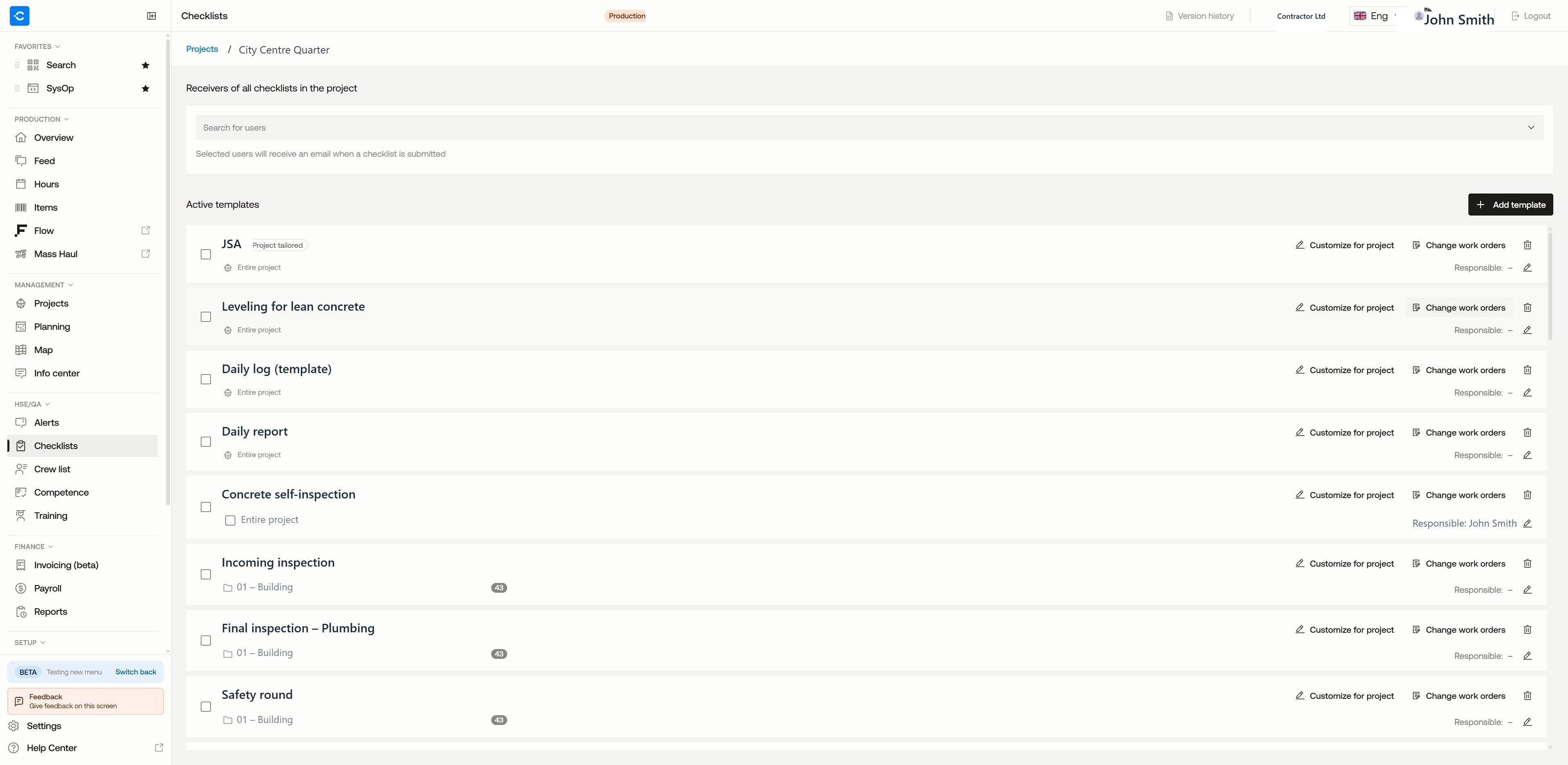 Image 3 — the "Receivers of all checklists" field + Responsible per template
Remember to check that the recipients have an email address on their user.
Company level — notification for a template across the whole company
If you want a template to always notify specific people, regardless of project, set the Responsible on the template itself:
- Go to Checklists → View checklist templates (top right).
- Open the template you want to change.
- Fill in recipients in the Responsible field.
- Click Save checklist template.
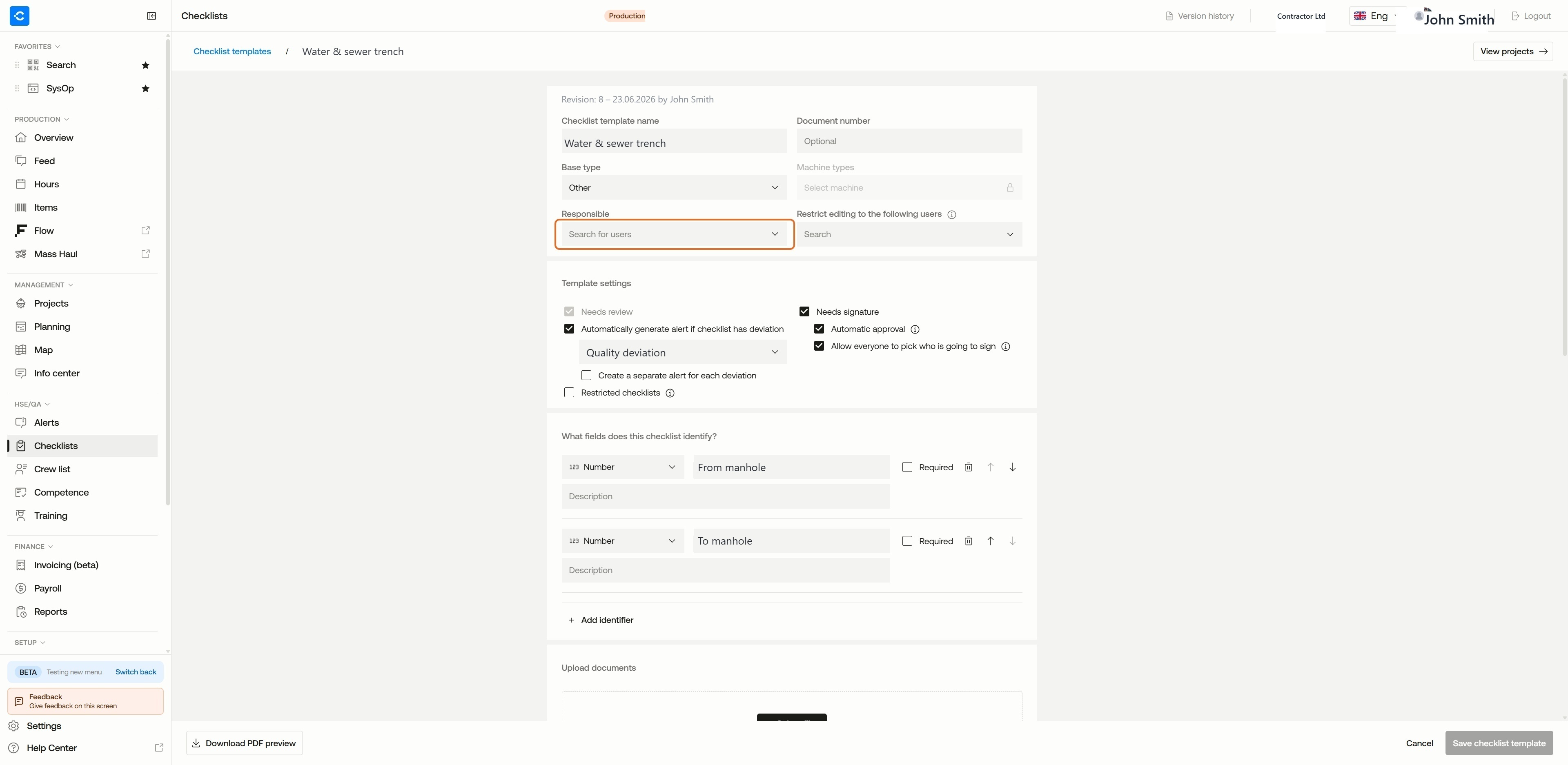 Image 4 — the template's "Responsible" field
How the recipients combine
💡 Tip: Company and project recipients are added together — they do not replace each other. A person listed in both places receives the email once. Use project level when specific projects need extra recipients beyond those that apply to the whole company.
The person who submits the checklist does not get a notification about their own submission.
What's in the notification?
The email contains who submitted it, the project name, the checklist's serial number / identifier, and a direct link straight to the checklist in Ditio.
ℹ️Frequently asked questions
A recipient gets nothing — why?
The most common reason is that the user has no email address. Check this under Users. Also check that the person is actually set as a recipient (either in "Receivers of all checklists in the project", as Responsible on the template at project level, or as Responsible on the company template).
Do project notifications override company notifications?
No. Recipients from company and project level are merged. If you have set recipients in both places, everyone gets a notification (and duplicates are removed).
Does the person who submits get a notification themselves?
No — the submitter is not notified about their own submission.
❓ Have more questions?
Check out our help center: Help center
Or contact Ditio Support:
📞 +47 941 47 041
📧 support@ditio.no