This article shows approval from the calendar. You can also approve from the salary basis, but that is a separate flow.
Step 1: Go to Hours
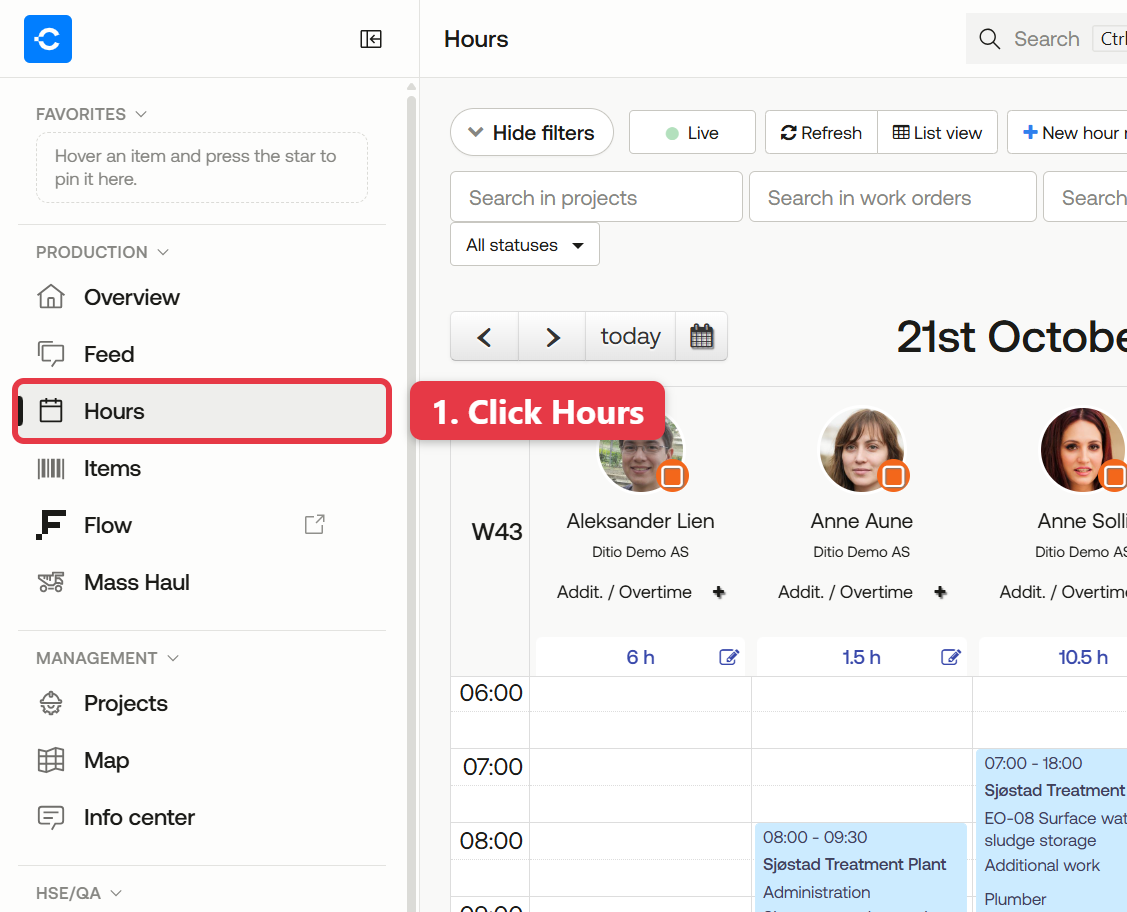
Click Hours in the menu on the left.
Menu with Hours highlighted
Step 2: Choose a view
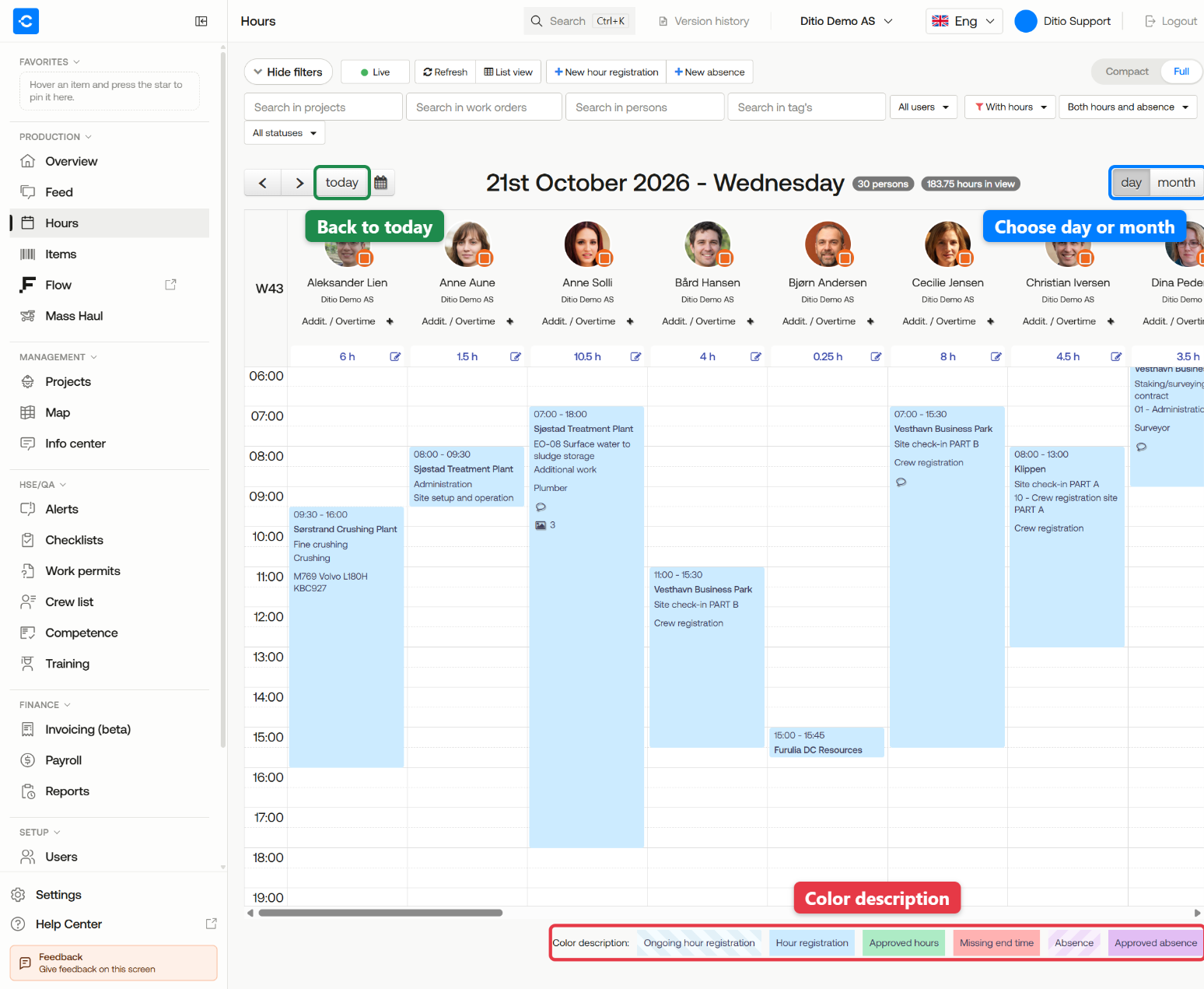
Hour approval opens with a calendar showing your employees' registrations. You can choose between day and month:
- day — shows one day at a time, with one column per employee. This is where you approve.
- month — shows the status for each day, for example «Ready for approval» or «Approved hours». Click a day to open it in day view.
The today button quickly takes you back to today's date.
Day view of the calendar
Color description (at the bottom of the window):
- Ongoing hour registration (blue stripes): the person is still checked in.
- Hour registration (light blue): finished and ready for approval.
- Approved hours (green): approved.
- Missing end time (light red): the person forgot to check out, and the registration was stopped without an end time. Open it and fill in the correct end time.
- Absence (purple stripes): absence that has not been approved yet.
- Approved absence (purple): approved absence.
Step 3: Filter by project (recommended)
If you have many employees on several projects, it can be easier to look at one project at a time.
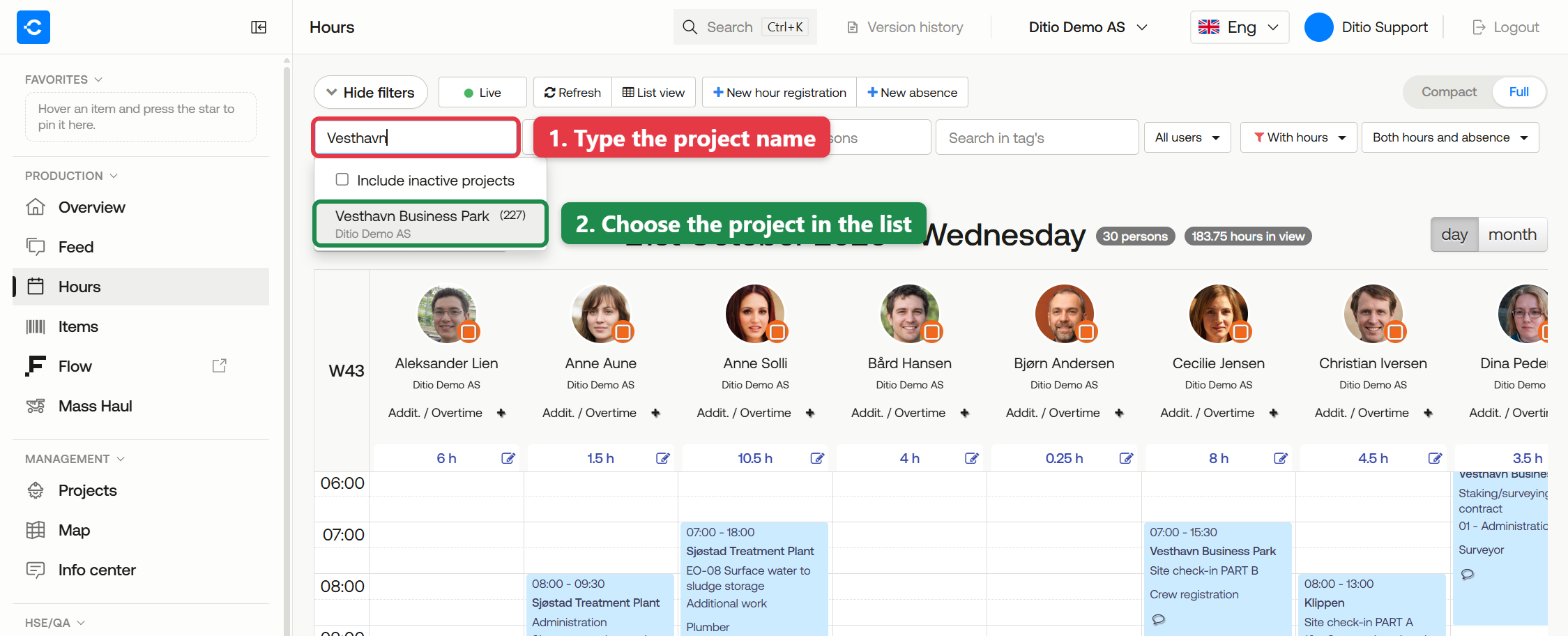
Type the name of the project in Search in projects, and choose it from the list of suggestions. If you can't see the search fields, click Show filters first.
Project filter with search field and suggestion highlighted
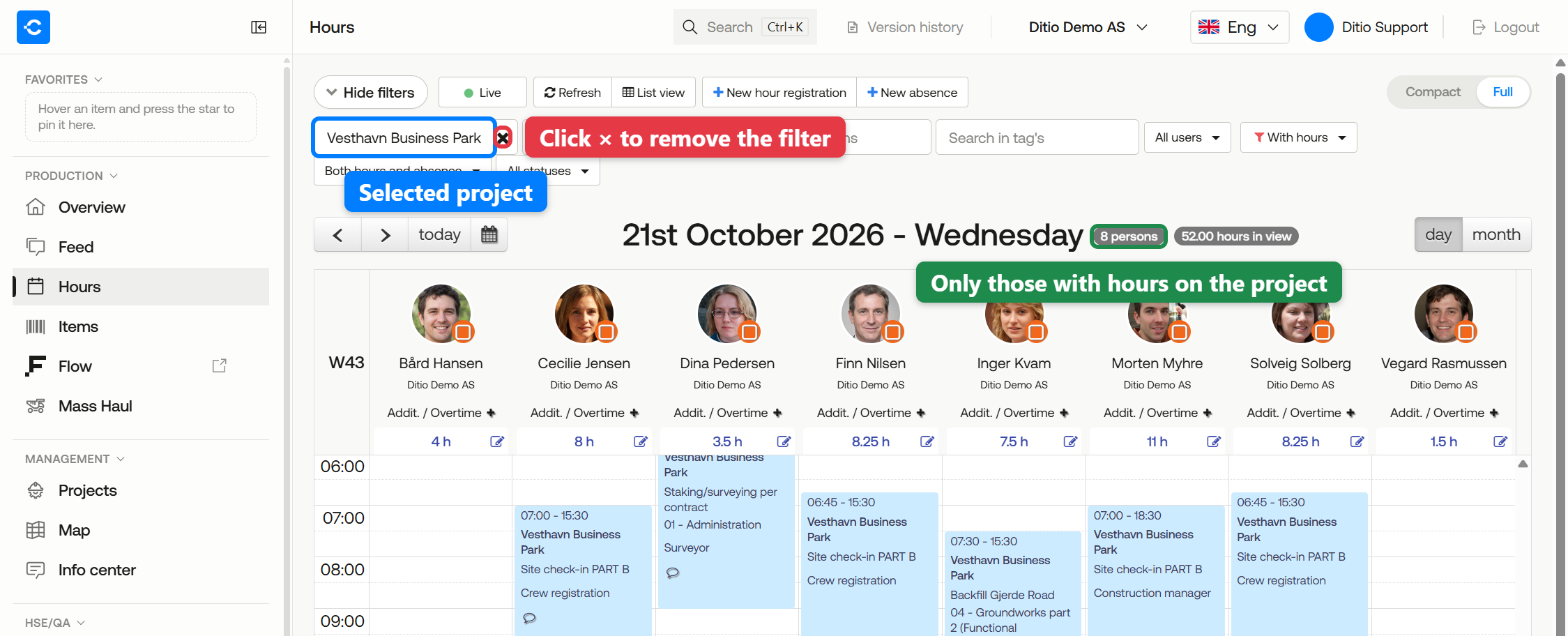
The calendar now only shows the employees who have hours on the selected project:
The calendar filtered on one project
💡 Tip: Click the cross in the project field to remove the filter and see all employees again.
Step 4: Correct a wrong hour registration
If an employee has registered the wrong time — for example the wrong start or end time — you can open the registration and correct it directly.
How to open a registration: Click the time block in the employee's column. This opens only that one registration. If you click the pencil next to the hour summary instead, you see all the employee's registrations for that day, for example if the person has worked on several projects. Do not click the profile picture, as that approves the day.
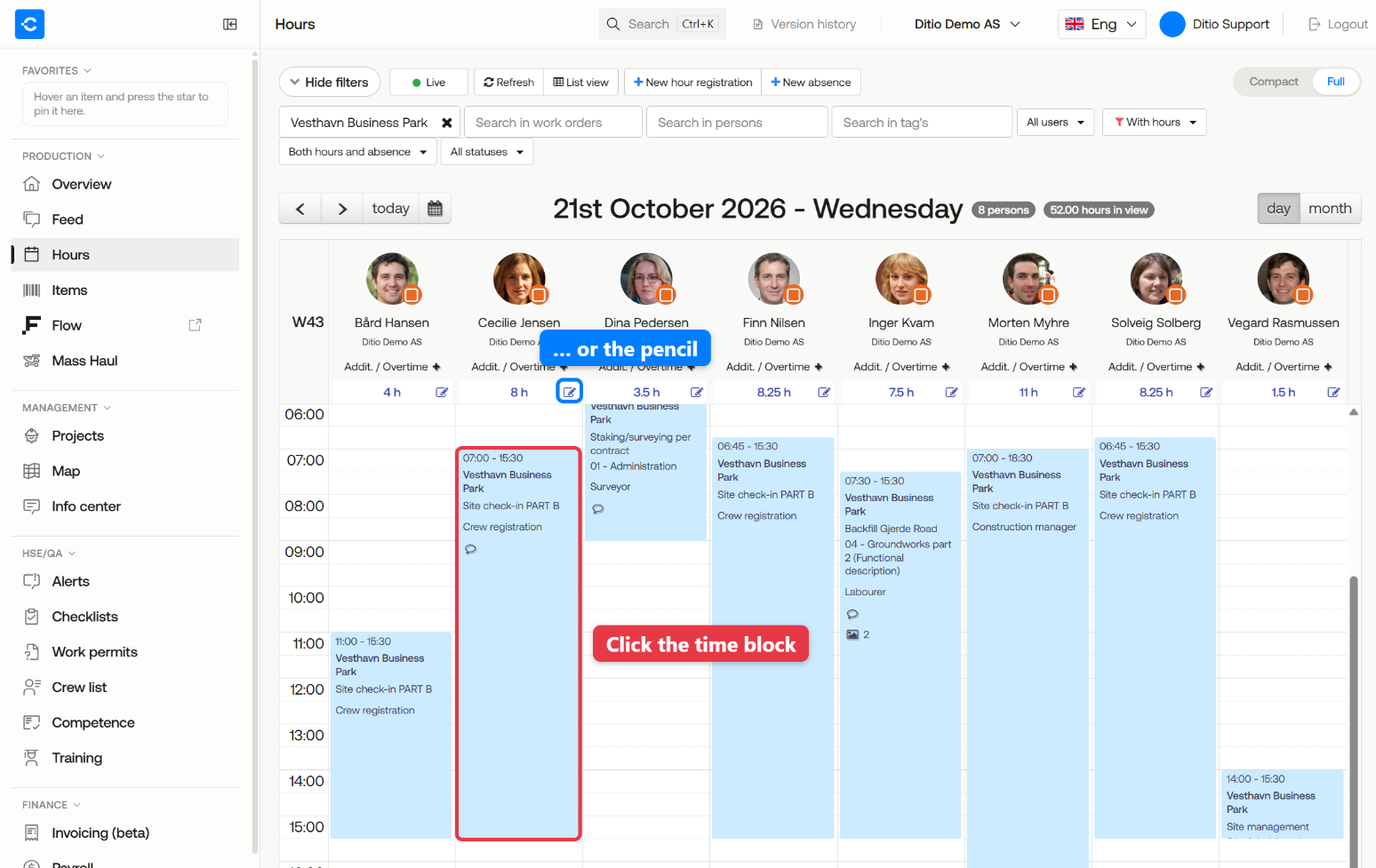
Click the time block to open the registration
Edit time and task: The Details window opens with the registration. Here you can change:
- From — start time
- To — end time
- Task — if the employee has chosen the wrong one
- Images — add images with the camera button
Click Save on the row to save your changes.
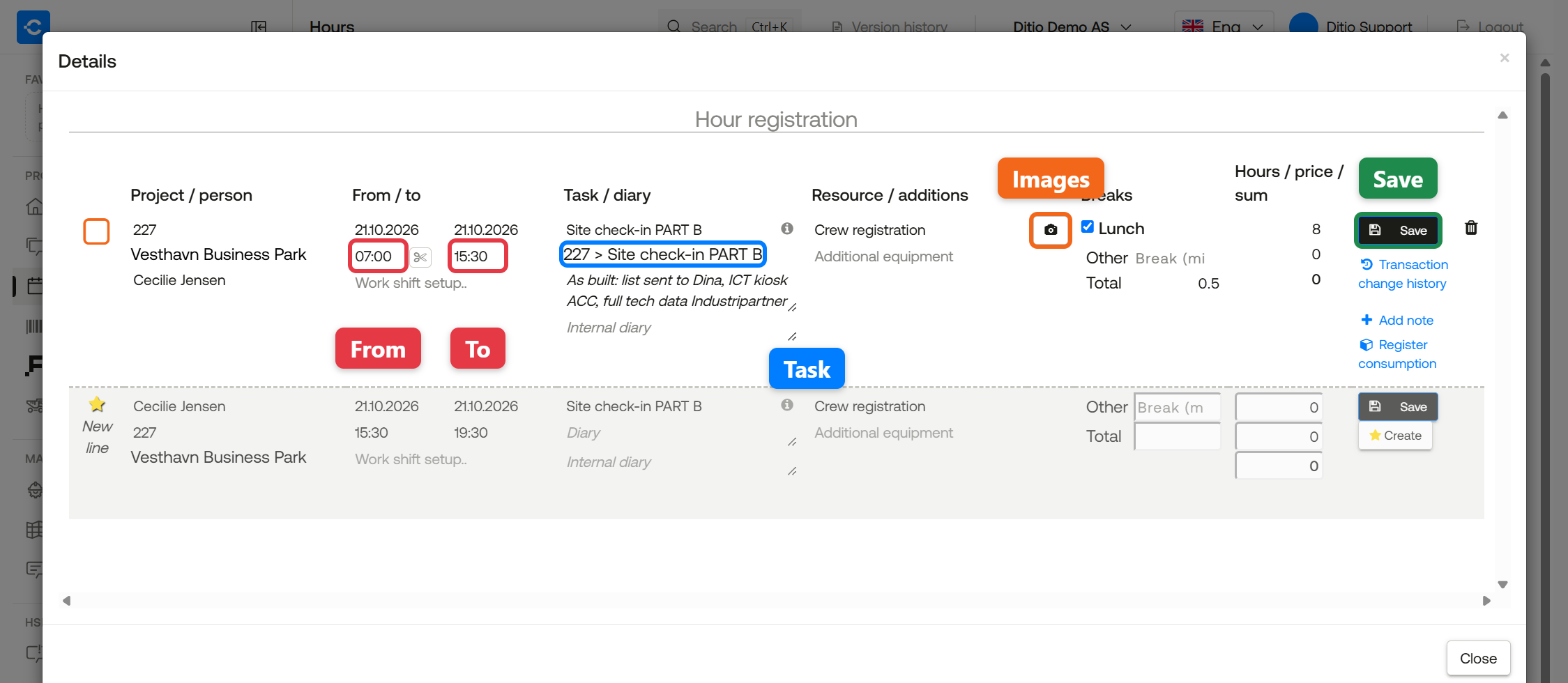
Hour editing with From, To, Task, Images and Save highlighted
To close without saving, click Close at the bottom or the cross (×) in the top right corner.
💡 Does the hour registration have images? The camera button is black when there are images on the hour registration, and white when there are none. In the calendar, the time block also shows a small image icon with the number of images.
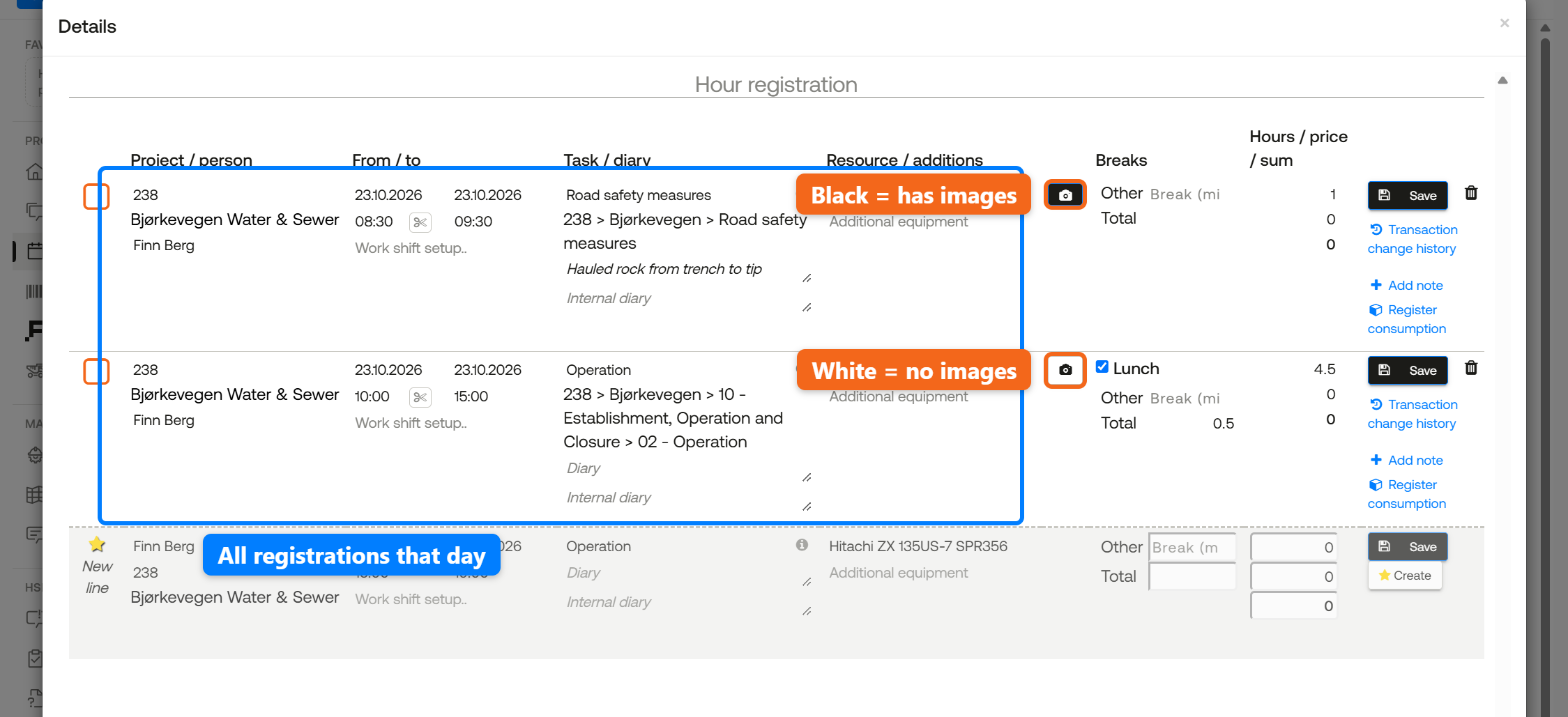
The pencil shows all registrations that day. A black camera button means there are images.
Add missing hours or absence
If an employee has forgotten to register hours or absence, you can add it yourself from the buttons at the top:
- New hour registration opens hour editing with an empty row. Choose the person, project, time, task and resource, and click Create.
- New absence opens a form where you choose the person, absence type and dates (from and to), and fill in the hours per day. Click Save.
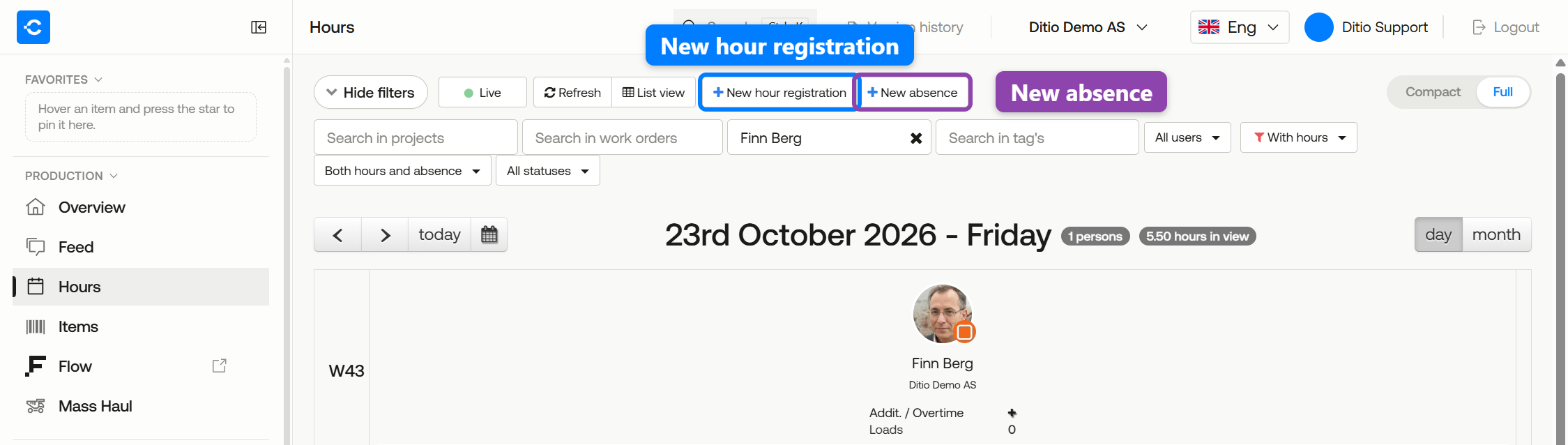
New hour registration and New absence
💡 Tip: If you open the pencil for an employee, there is a new row at the bottom with the person and the day already filled in. If the employee has left the company, see How to log hours for a deactivated employee.
Step 5: Approve an employee's hours
When the hours look correct, you can approve them.
Click the employee's profile picture at the top of the column. This approves the whole day: all hour registrations, and absence if you have the right to approve absence. If you have filtered on a project, only the hours on that project are approved.
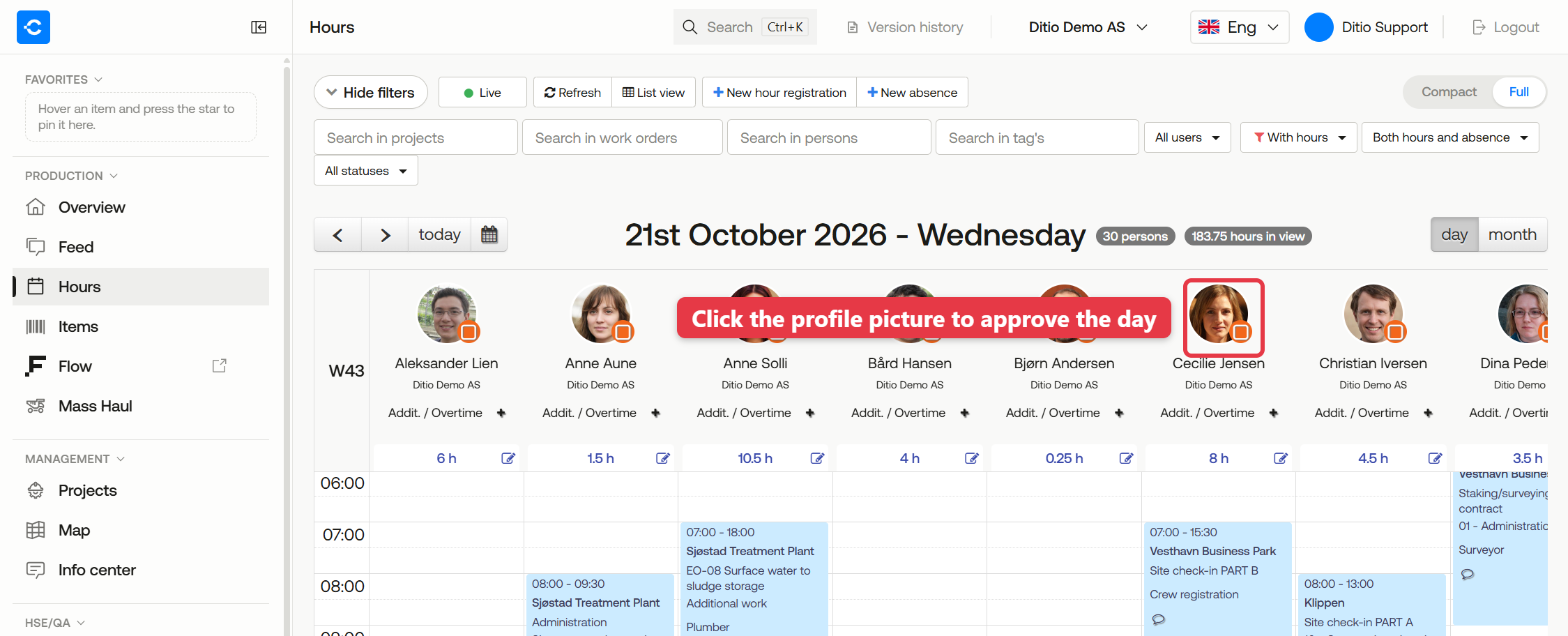
Click the profile picture to approve
The badge in the corner of the profile picture shows the status:
- Orange box: ready for approval.
- Green check mark: the day is approved.
- Blue clock: the employee is still checked in. The day can be approved once the registration has ended.
After approval, the profile picture shows a green check mark, and the hours turn green:
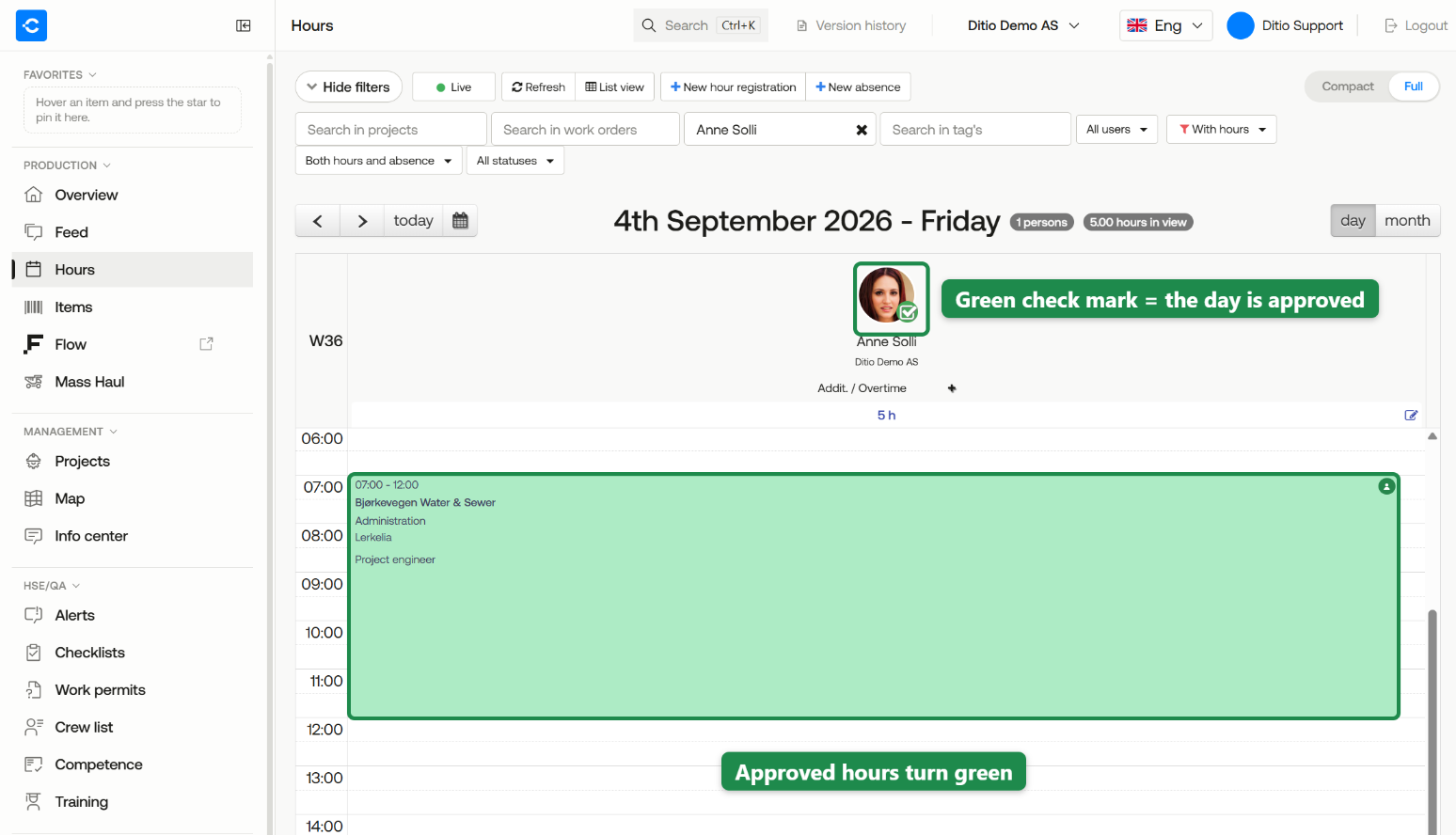
Confirmation with a green check mark
Want to undo? Click the profile picture again. You get the question «Remove approval?». Click OK to remove the approval.
How to see if hours are self-approved
A manager can approve their own hours. The time block then gets a small green person icon in the top right corner. If you hover over the time block, you can see who approved it and when. If it says — self-approved after the name, the person approved their own hours.
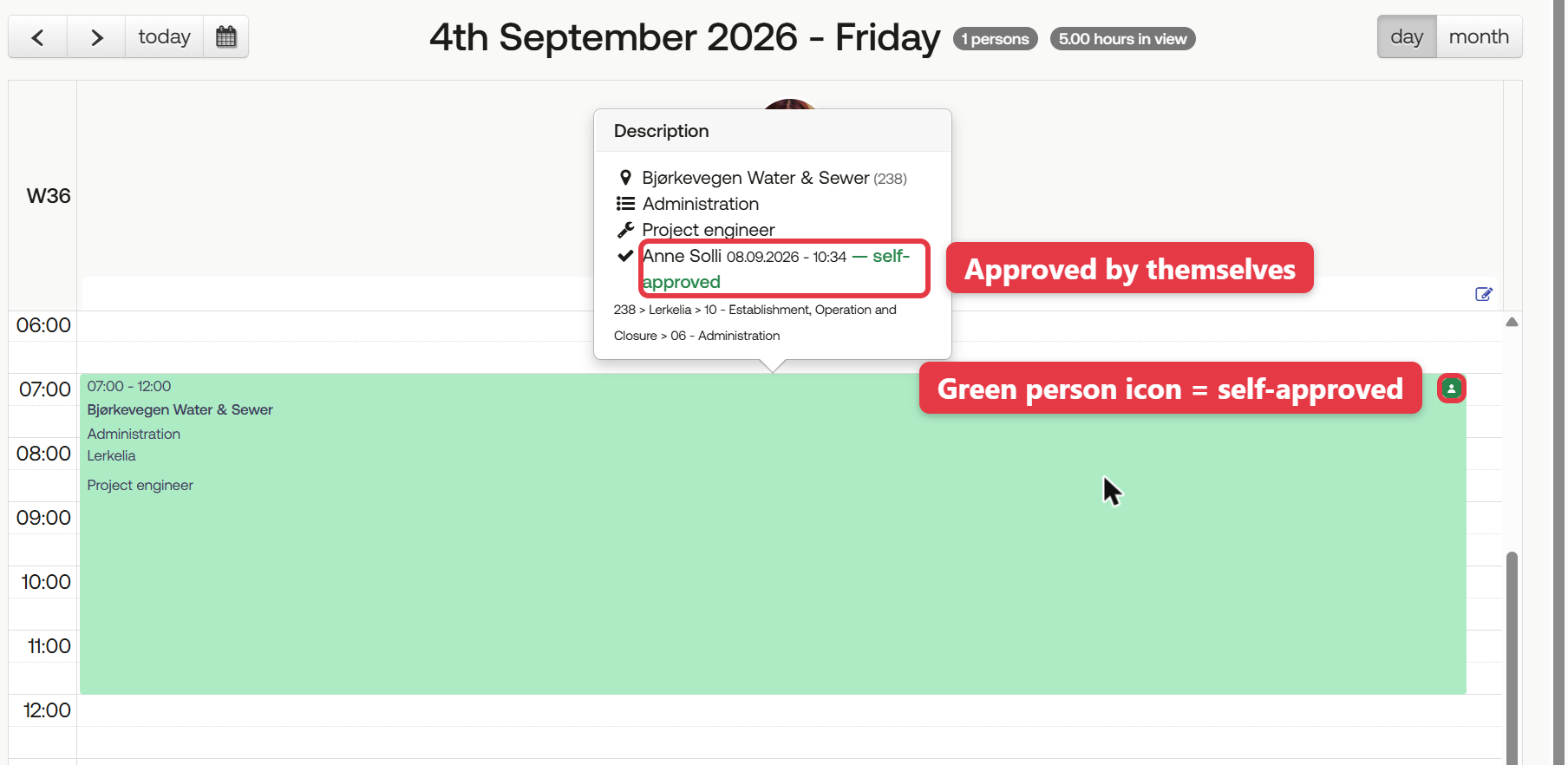
Self-approved hours in day view
💡 Want to see all self-approved hours for a period? Go to Reports → Time and choose Excel format (hours). If the name in the «Employee» column is the same as in «Verified by», the hours are self-approved.
ℹ️Frequently asked questions
What if I can't see any employees in the calendar?
Check that you are on the right date, and whether you have an active filter. When the filters are hidden, the Show filters button shows how many filters are on. Remove the filter to see all employees you manage.
What does «Addit. / Overtime» under the employee's name mean?
Click it to add overtime or additions for that day. If the employee has already registered overtime or additions, they are shown there instead.
Can I see what an employee has registered before I approve?
Yes. Hover over the time block for a quick overview, or click it to see all the details.
What is the difference between step 1 and step 2?
Step 1 is your approval as the nearest manager. Step 2 is the payroll department's processing in the Payroll menu (the salary basis). It is not something you do as a manager.
Can I approve several employees at the same time?
No. You have to click the profile picture of each employee. With a project filter, you get a tidy list to go through.
Can I approve in month view?
No. Click the day to open it in day view, and approve there.
❓ Have more questions?
Check out our help center: Help center
Or contact Ditio Support:
📞 +47 941 47 041
📧 support@ditio.no