Tags in Ditio are labels on employees used to group users — for filtering, reporting and automatic salary setup. There are two variants:
- Regular tags — general labels (for example "Foreman", "Apprentice", "Pump operator"). Used to filter crew, user lists and reports. No date.
- Payroll tags — the same tag catalog, but tied to a period (valid from/to) on the individual employee. Used in automatic salary setup (for example "everyone with tag X on this date gets salary rule Y").
In short: the tags are the same. The difference is whether you apply them to the user without a date (regular tag) or with from/to dates (payroll tag).
Step 1: Create the tag catalog in Settings
Go to Settings → Tags. Here you see all the tags in the company and how many users have each one (the Number of references column).
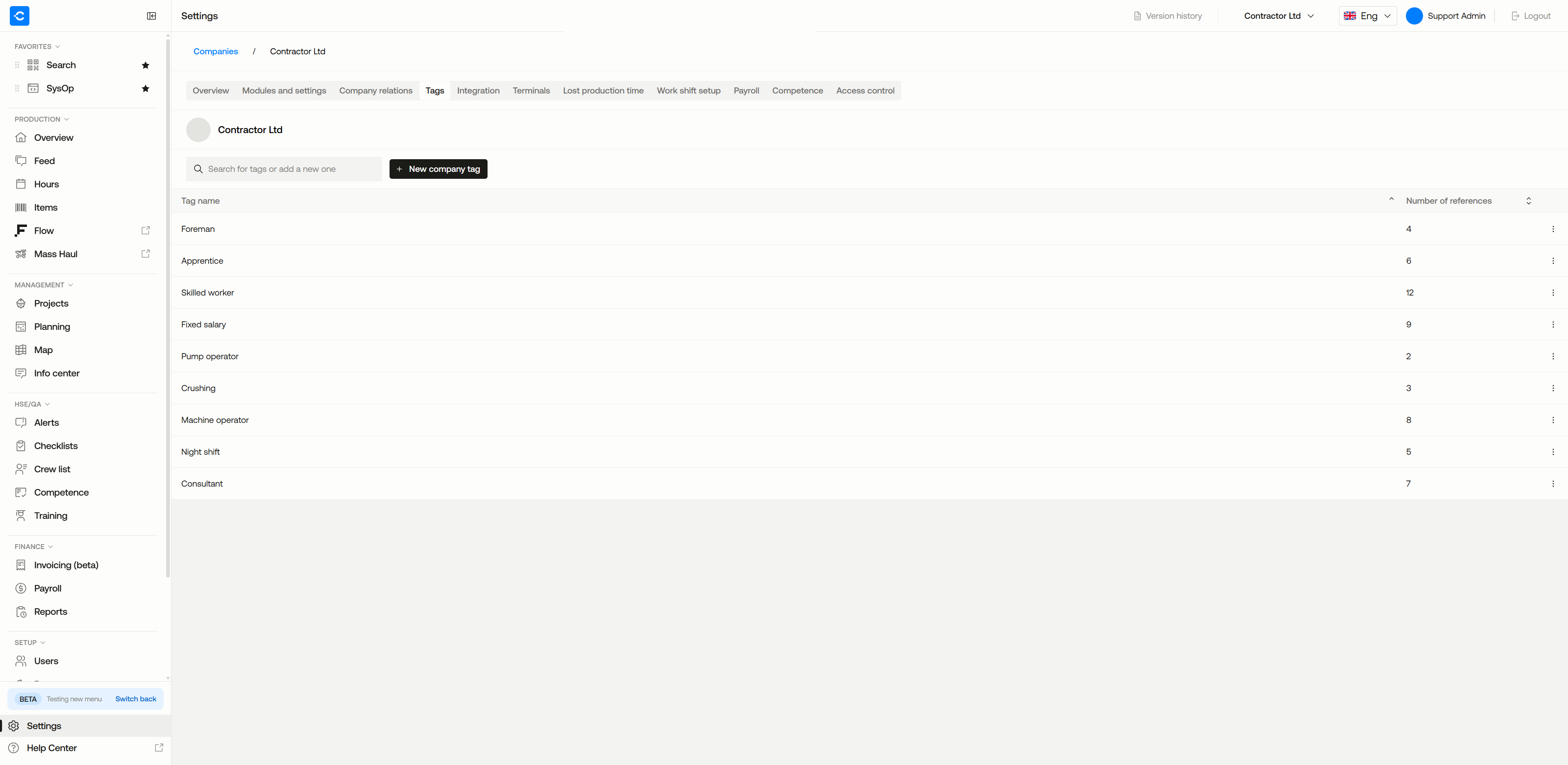
Settings → Tags — the company tag catalog with the Number of references column.
Click New company tag and give the tag a name. The tag is now available both as a regular tag and as a payroll tag — how you use it decides which it is.
Tip: Give tags descriptive names (for example "Fixed salary", "Apprentice", "Foreman", "Crushing"). Avoid project or site names unless you use the tag for project-specific filtering.
Step 2: Regular tags on an employee
Open the user's profile (Users → user → Personal info). Further down you'll find the Tags section. Search for the right tag and pick it from the list — or add a new one on the spot.
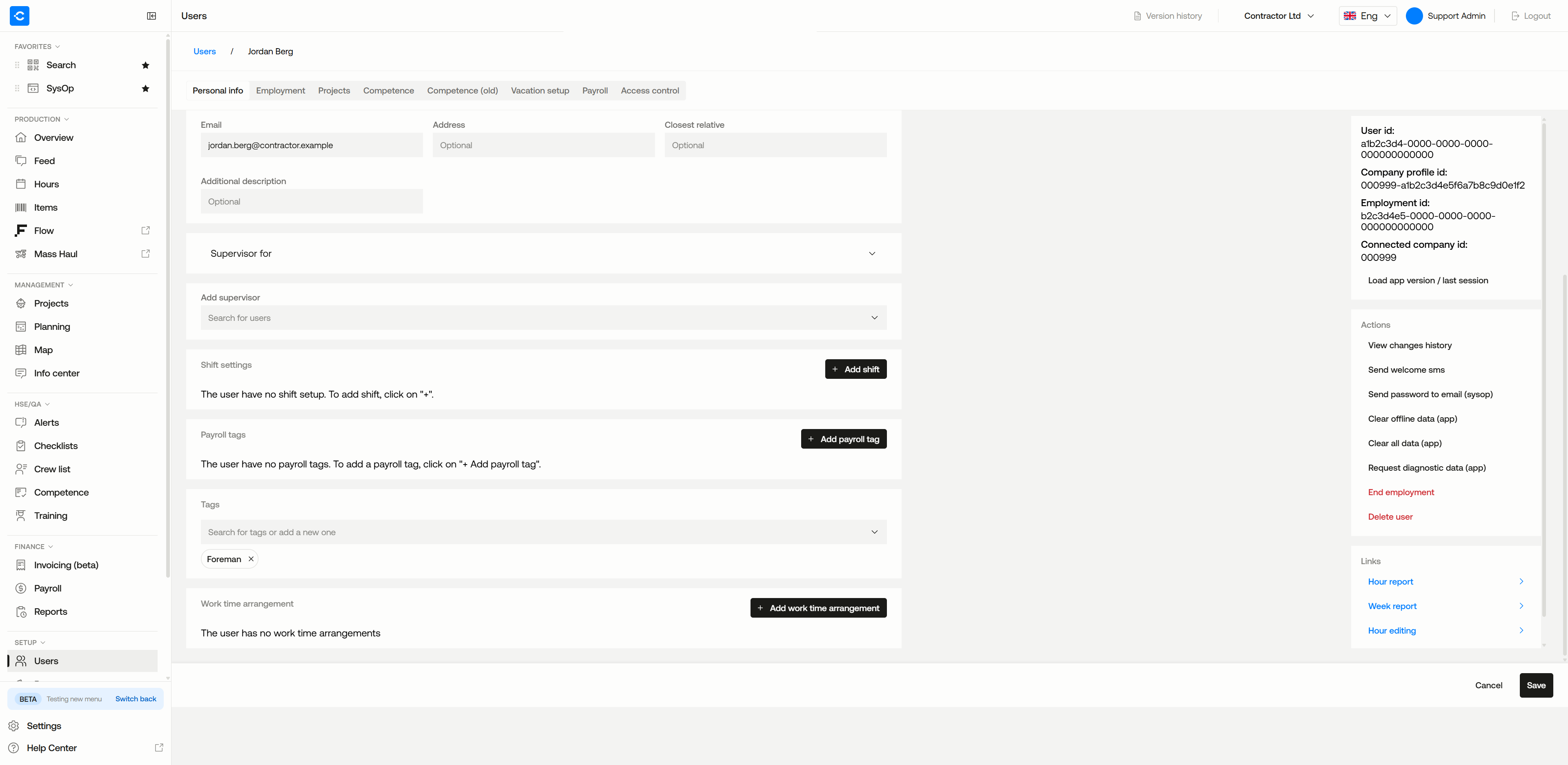
The user profile — the Payroll tags section sits above the regular Tags section.
Regular tags stay valid until you remove them manually. They are used for crew filters, user lists and reports — not in salary calculation.
Step 3: Payroll tags with a period
On the same user profile, the Payroll tags section sits just above Tags. Click + Add payroll tag and choose the tag, a Valid from date and an optional To date.
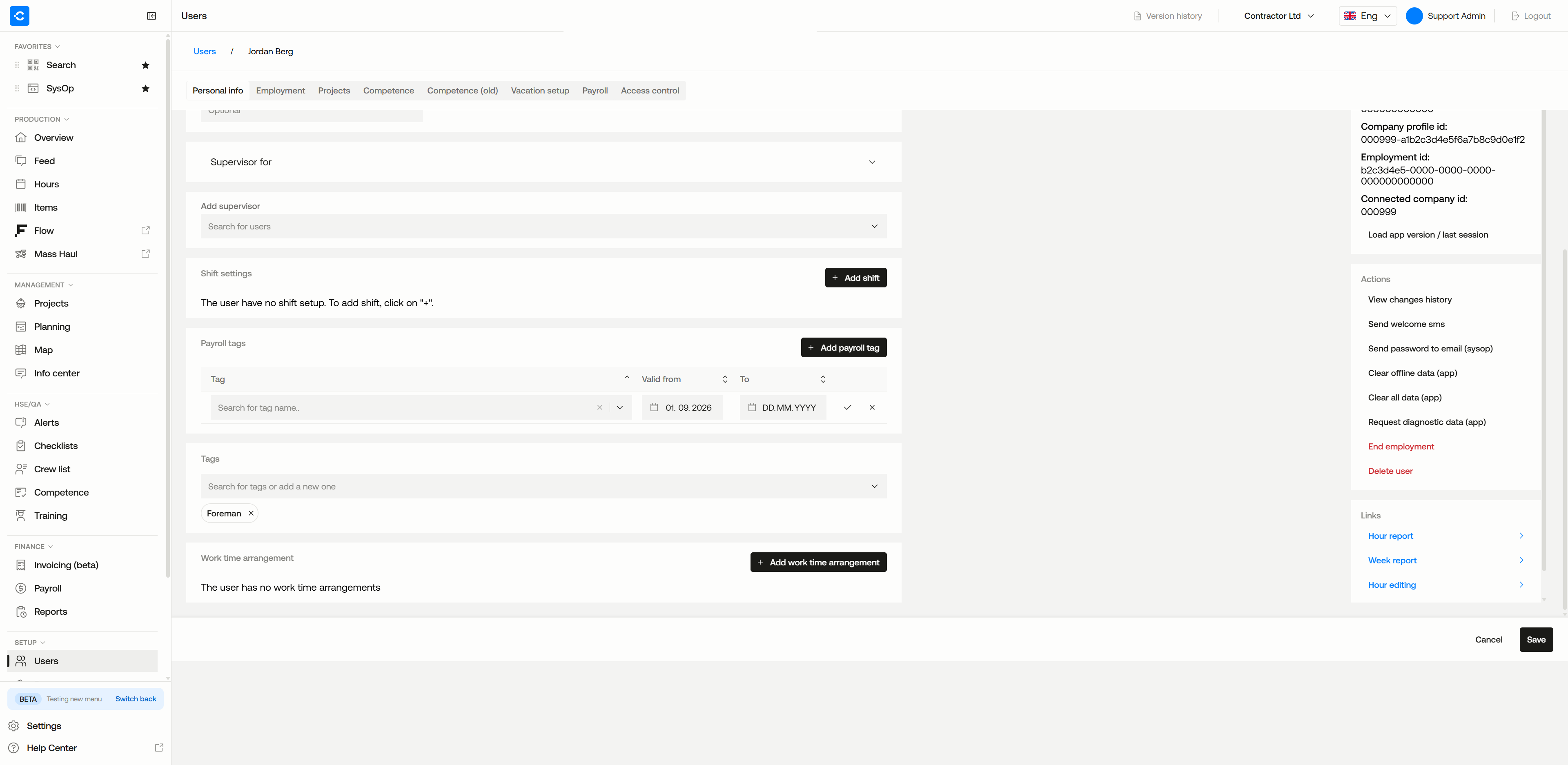
A new payroll tag row — pick the tag, then set Valid from and (optionally) To.
- Valid from — the date the payroll tag applies from. Usually the first of the month in which the new salary rule begins.
- To — leave blank (DD.MM.YYYY) if the payroll tag applies going forward. Set an end date if it should stop (for example when the apprenticeship period is over).
Example: an apprentice who becomes a skilled worker on 01.06.2026 — set the "Apprentice" payroll tag to To 31.05.2026, and add a new "Skilled worker" payroll tag from Valid from 01.06.2026. The salary rule then switches automatically on the right day.
Where are the tags used?
Regular tags:
- Filter in the Users list (show only foremen, only apprentices, and so on)
- Filter in the crew list on the site
- Tag filter in Payroll when you pull data for a period
- Tag filter in reports and exports
Payroll tags:
- Automatic salary setup — which salary rules apply to which employees in a given period
- Calculation of allowances and overtime tied to employee categories (apprentice, fixed salary, etc.)
- Tag-specific rules that change over time (for example the date of a trade certificate)
ℹ️Frequently asked questions
Do I have to create two different tags — one regular and one for payroll?
No. The same tag can be used both ways. It's the way you apply it to the user that decides (with or without a date). You create the tag once under Settings → Tags.
What happens if I remove a tag from Settings → Tags?
The tag disappears from every user profile where it is set — both as a regular tag and as a payroll tag. Only delete tags that are no longer in use, and double-check the Number of references count before you delete.
Can an employee have several payroll tags at once?
Yes, as long as they are valid at the same time (overlap in time). The salary setup can combine several tags to determine the correct salary rule.
How do I get the history of which salary rule an employee has had?
The payroll tag table on the user shows all current tags with from/to dates. For history further back (removed payroll tags), use View changes history under Actions on the user profile.
Subcontractors — can I set payroll tags on them?
No. The Payroll tags section is only shown for employees in your own company (Employees). Subcontractors can get regular tags for filtering, but not payroll tags — they are paid by their own company.
Why must payroll tags have a date?
Because payroll processing has to know which rule applied when the hours were recorded. If an employee goes from apprentice to skilled worker in the middle of a payroll period, the from/to date makes sure the right rule is used on the right day — without manual adjustments.
❓ Have more questions?
Check out our help center: Help center
Or contact Ditio Support:
📞 +47 941 47 041
📧 support@ditio.no