Each payroll type has a name and an export ID that is used when payroll is exported.
You find and manage payroll types under Settings → Payroll → Payroll types.
This article shows how to create a new payroll type and how to edit an existing one. You need administrator or payroll-manager access to see this page.
Step 1: Go to Payroll types
Open Settings from the menu. Select the Payroll tab at the top, then the Payroll types sub-tab.

The Payroll tab and Payroll types sub-tab with the list of payroll types
You now see a list of all payroll types in the company, with the columns "Name", "Type ID", "Type ID fixed payroll", "Line type", "Export", "Available in this company", "Active" and "Rules".
- Use the "Search" field to find a specific payroll type.
- "Active" / "Inactive" filters between the payroll types that are in use and those that are switched off.
- "Change order" lets you decide the order the payroll types are shown in.
- "Download CSV" exports the list.
Step 2: Create a new payroll type
Click "Create payroll type" at the top right. This takes you to a dedicated page where you fill in the whole setup in one place (not a small dialog).
-png.png?width=1804&height=878&name=Step%202%20-%20Create%20payroll%20type%20(form)-png.png)
The Create payroll type page with all the fields
The basic setup at the top:
| Field | What it means |
|---|---|
| Name | The name shown in Ditio (required). Choose something clear, e.g. "Tool allowance" or "Night supplement". |
| Line type | What kind of line the payroll type is — e.g. Addition, Overtime level 1, Overtime level 2, Timebank, Kilometer, Task based or Piecework. |
| Value type / Overtime type | The third field changes with the line type: for additions it is Value type (e.g. Quantity), for overtime lines it is Overtime type. |
| Active | Whether the payroll type is in use. Clear the box to make it inactive. |
| Available in this company | Whether the payroll type can be used in this company. |
| Comment required | Whether a comment is required when the payroll type is used (shown for some line types). |
Further down you find the Export section:
- "Include type in export" — whether the payroll type is included in the payroll export.
- "Hourly pay ID" — the export ID used for hourly-paid employees. (This is the same as the "Type ID" column in the list.)
- "Fixed pay ID" — a separate export ID for fixed-salary employees. Optional — leave it blank if not needed.
- "Export IDs" → "Add override" — override the export ID for specific conditions (advanced, rarely needed).
To have the payroll type added automatically for certain employees, see Step 4: Rules. Click Create when you're done.
Step 3: Maintain (edit) a payroll type
To correct an existing payroll type — for example change the export ID, switch the line type or turn it off — click the row in the list. This opens the same page as when creating, now with the payroll type's values.
At the far right of the row you'll also find a menu icon (⋮) with the option "Delete". Be careful deleting payroll types that have already been used in payroll runs — it's usually better to make them "inactive" (see below).
At the top right of the page you'll find "Change log", which shows what has been changed on the payroll type and by whom.
Make the changes you need, then continue to saving (Step 5).
Step 4 (optional): Rules and automation
In the "Rules" section on the create/edit page you can control when and for whom the payroll type is available — and optionally have it added automatically, so you don't have to register it manually every time. Click "Add rule".
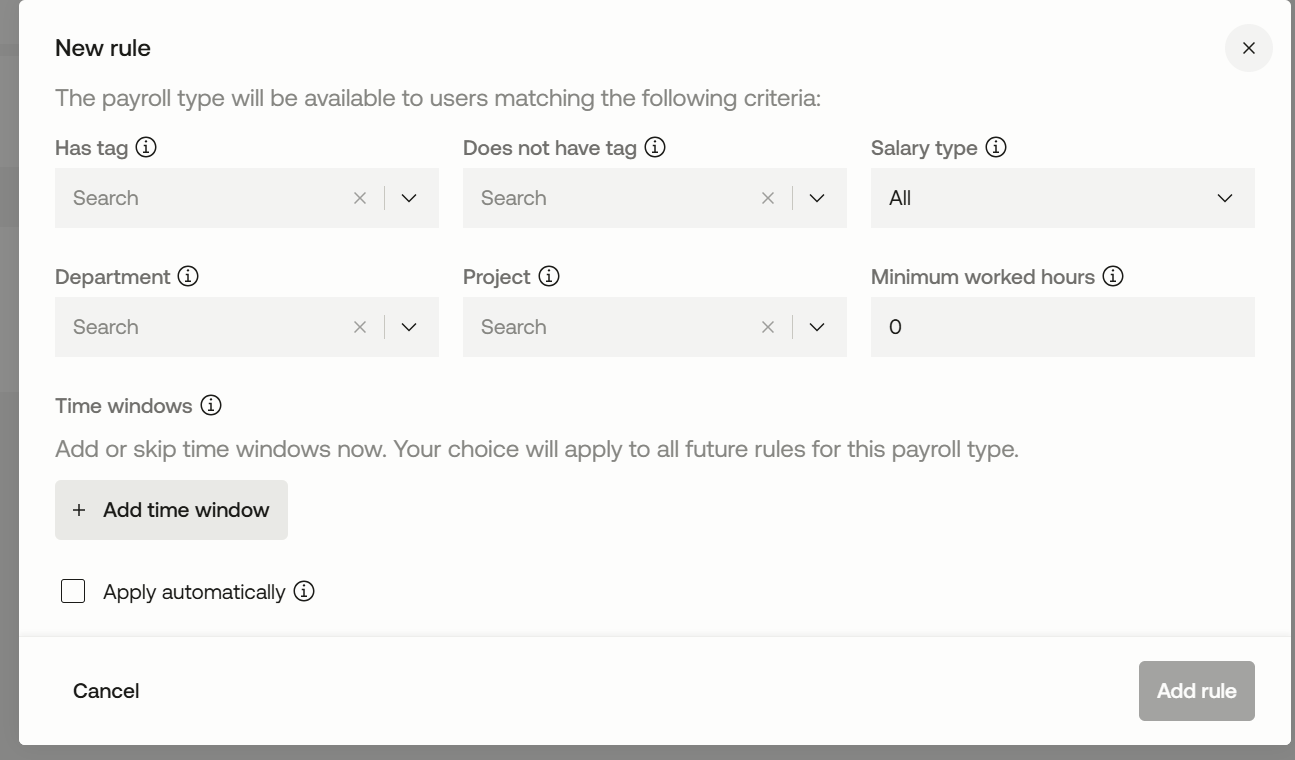
The New rule dialog with criteria
The payroll type becomes available to users who match the criteria you set:
- "Has tag" / "Does not have tag" — limit to (or exclude) users with specific tags.
- "Salary type" — All, hourly-paid or fixed-salary.
- "Department / Project" — limit to a department or a project. Leave blank for everyone.
- "Minimum worked hours" — the rule only applies once worked hours reach this number.
- "Time windows" → "Add time window" — local time periods where the payroll type applies (e.g. 21:00 → 06:00 for night). Your choice applies to all rules on this payroll type.
- "Apply automatically" — when ticked, the payroll type is added automatically when the criteria match. When off, the rule only controls availability.
Click "Add rule" to save the rule.
Automation example: To have a night supplement added automatically for everyone working at night, create a rule on the night-supplement payroll type with a time window of 21:00 → 06:00 and tick "Apply automatically". Employees then get the supplement automatically for the hours that fall within the time window — with no manual entry. You can use a tag (e.g. "Apprentice") or a department in the same way to control which employees the payroll type is added for.
You can add several rules to the same payroll type. Rules are an advanced feature — if you're unsure, contact Ditio support before setting up automation.
Step 5: Save
When you're done, click "Save" (or "Create "for a new one) at the bottom right. To discard your changes, click "Cancel".
Activating and deactivating a payroll type
Instead of deleting a payroll type you no longer use, you can make it inactive. It then disappears from the selection lists, but history and previous payroll runs are kept.
- Open the payroll type and clear the "Active" box, or
- use the "Active" / "Inactive" filter at the top of the list to bring inactive payroll types back.
ℹ️Frequently asked questions
Where do the supplements in the "Supplement / Overtime" dialog come from?
They come from the payroll types set up here, under Settings → Payroll → Payroll types. If a supplement is missing, create a new payroll type as this article shows.
What is the difference between "Hourly pay ID" and "Fixed pay ID"?
Hourly pay ID is used when exporting for hourly-paid employees, Fixed pay ID for fixed-salary employees. If you only have one number, fill in Hourly pay ID and leave Fixed pay ID blank. (In the list these are shown as "Type ID" and "Type ID fixed payroll".)
What does "Apply automatically" do in a rule?
When it's on, the payroll type is added automatically for employees who match the criteria. When it's off, the rule only decides whether the payroll type is available to choose — it isn't added by itself.
How do I change the order the payroll types are shown in?
Use the "Change order" button at the top of the list.
Should I delete or deactivate a payroll type I don't use?
Usually "deactivate". Deleting should be avoided for payroll types that have already been used, so history and payroll runs are not affected.
Why can't I see the Payroll types page?
The page requires elevated permissions (administrator/payroll manager). Contact your company's system administrator if you're missing access.
❓ Have more questions?
Check out our help center: Help center
Or contact Ditio Support:
📞 +47 941 47 041
📧 support@ditio.no