This guide takes you through the whole flow: from opening the Checklists module, to the templates being ready in the Ditio app for the people who will fill them in.
Before you start
To attach checklists to a project, the following must be in place:
- You must be an administrator or super user in the company
- The checklist template must be created — you can't attach templates that don't exist. If you don't have the template yet, create it first via View checklist templates in the top-right of the Checklists overview.
- The project must exist in Ditio
- If you want to limit the template to selected work orders, these should be created on the project beforehand
Tip: You can attach several templates to the same project — for example one safety-inspection template, one JSA template and one self-check. Users in the app then get a single list to choose from.
Entire project or specific work orders?
The most important choice in this flow is how broadly the checklist should be available:
| Choice | When it fits |
|---|---|
| Entire project | The checklist applies regardless of which work order the user is checked in on. Typical for safety inspections, general HSE rounds, daily safety meetings. |
| Selected work orders | The checklist is discipline-specific and belongs only to certain activities — e.g. a concrete check on the work order "Slab casting", or a machine check on "Excavation". |
Rule of thumb: Start with the entire project. Switch to a work-order filter when the list in the app starts getting long and users complain about scrolling through irrelevant templates.
Step 1: Open Checklists
Click "Checklists" in the left-hand menu. You'll land on the overview showing all projects you have access to.
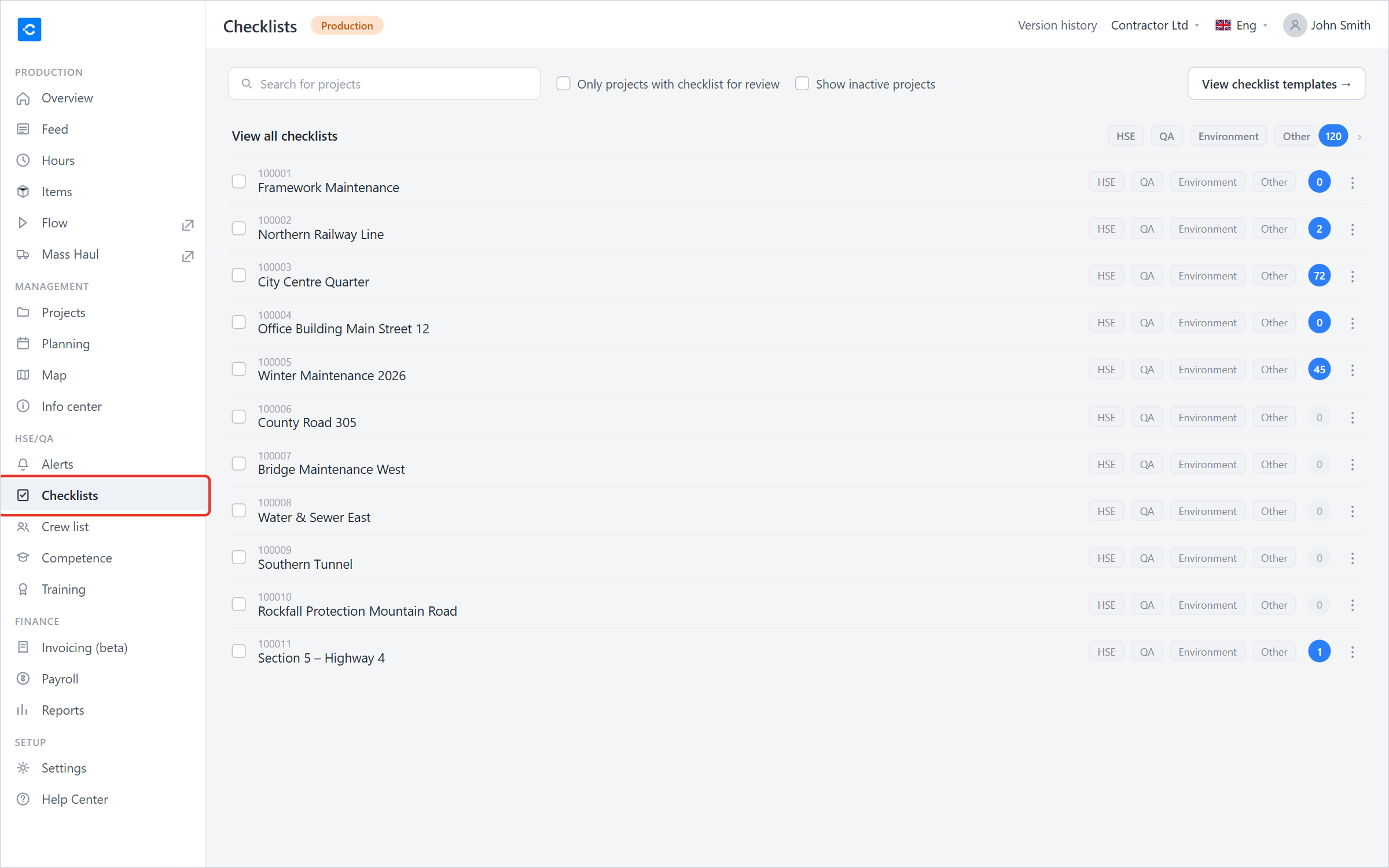 The project list under the Checklists module. The red box marks the menu option.
Step 2: Find the project and open Project settings
Search for or scroll to the right project. On the project row:
- Click the three dots (⋮) on the far right
- Select "Project settings" from the menu that pops up
You're now inside the settings for that specific project — other projects are not affected by the changes you make here.
Don't see "Project settings" in the ⋮ menu? Then you lack the required rights. A regular user sees the menu itself, but not this option — it requires an administrator or super user.
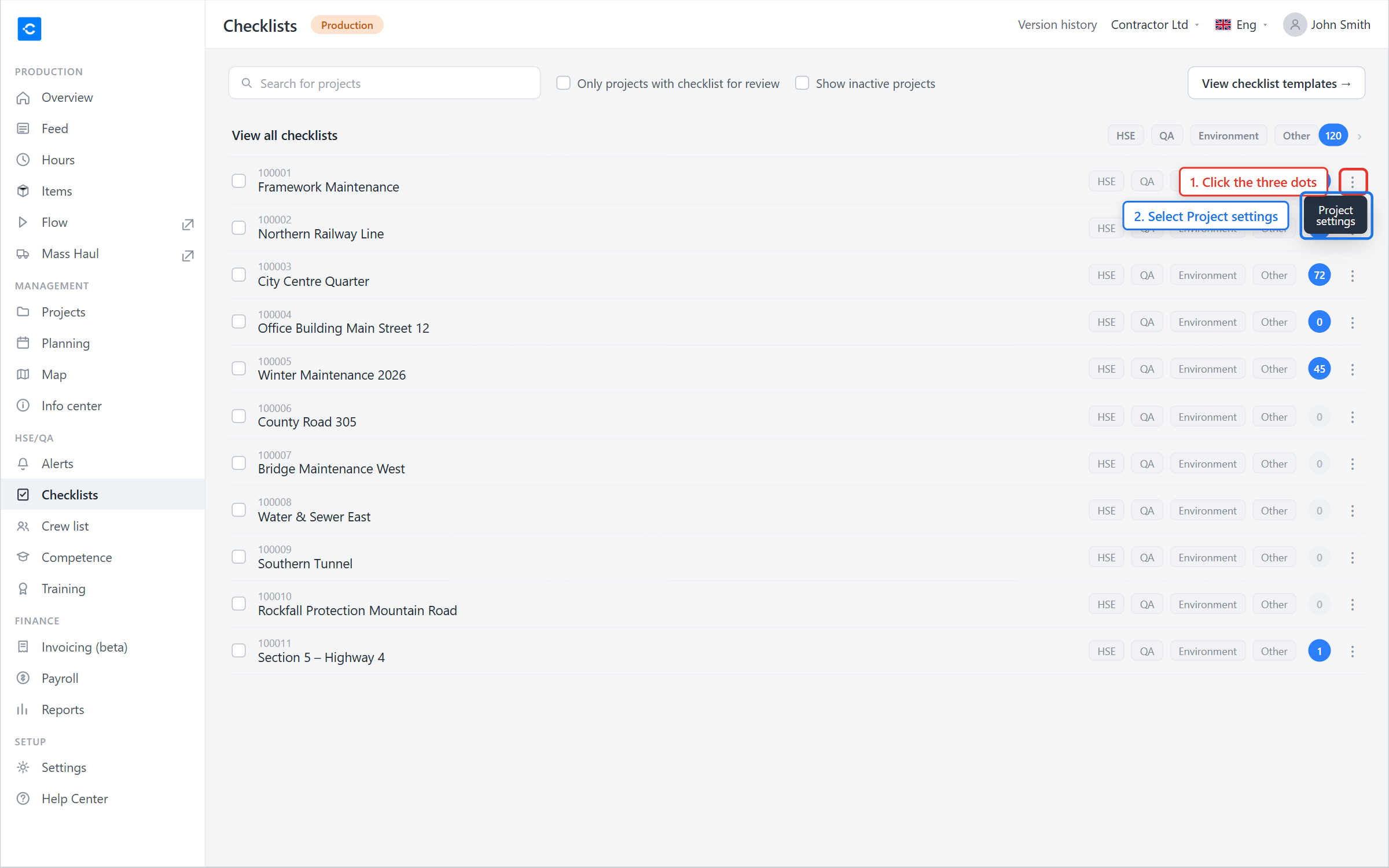 Three-dot menu with Project settings
Click ⋮ on the project row and select Project settings
Step 3: Click "Add template"
You now see Project settings for the project, with an overview of Active templates. If the project doesn't have any templates yet, you'll see "No templates — There are no checklist templates attached to the project".
Click "Add template" in the top-right.
Bonus: Under "Receivers of all checklists in the project" you can add users who should receive an email when someone submits a checklist on this project. Entirely optional.
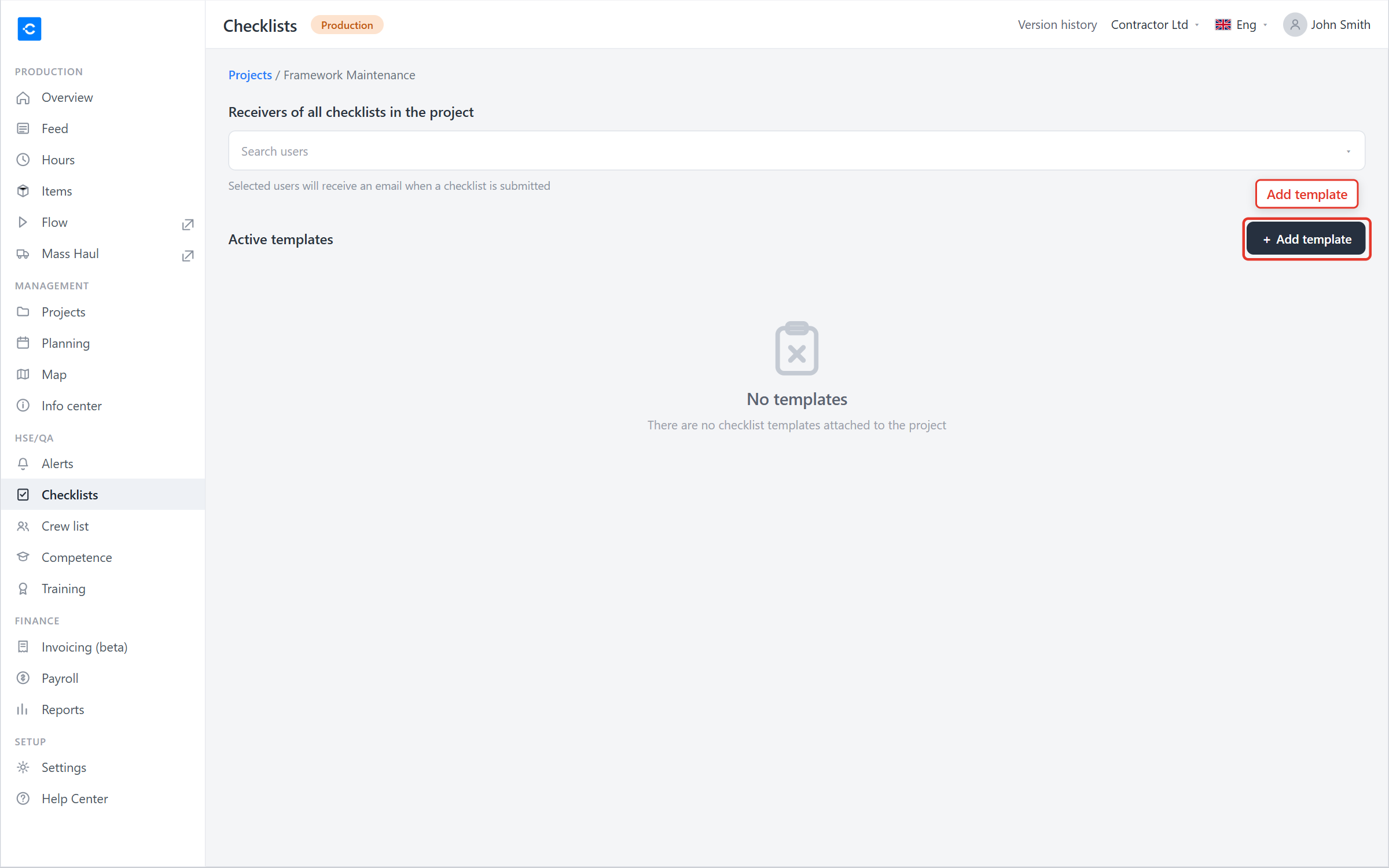 Project settings with the "Add template" button
Step 4: Choose which templates to include
The "Add template" dialog opens. On the left you see the folder structure with all available templates.
- Tick the box next to each template you want to add (you can select several)
- Selected templates appear in the list on the right under Templates: — remove one by clicking the trash can next to its name
- Use Search in templates at the top if you have many templates
- Click "Next" when you're happy
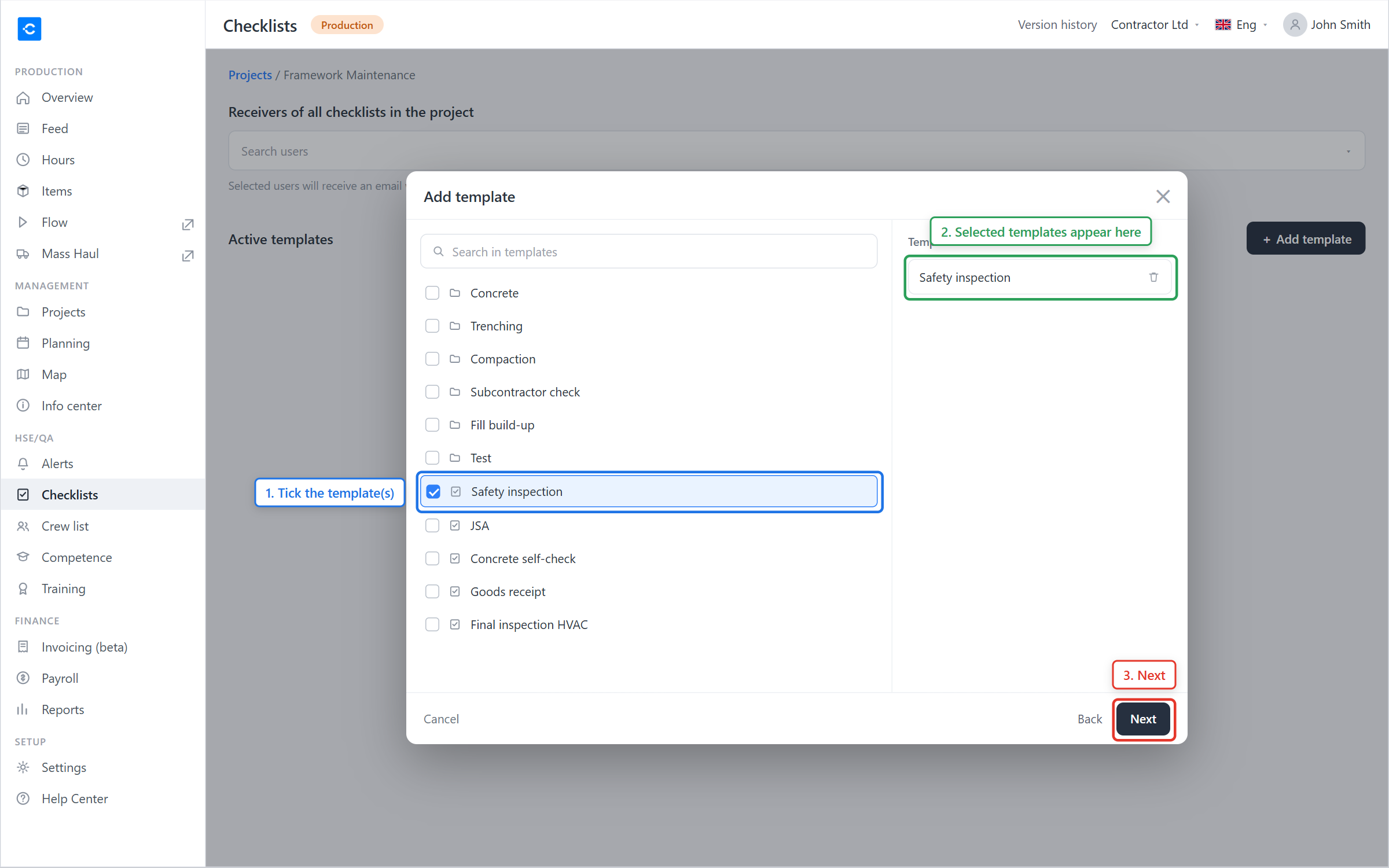 Selecting templates in the dialog
Checkpoint: Review the list on the right before you click Next. Are all the templates you wanted there — and only those? Extra templates end up in the app and can cause confusion.
Step 5: Choose the scope — entire project or work orders
Now you choose where on the project the templates should be visible. You have two options:
- A. Entire project — tick Attach to entire project. The templates are available regardless of which work order the user has selected.
- B. Selected work orders/chapters — leave the box unticked, and instead tick specific work orders in the tree on the left. Users checked in on other work orders won't see the templates.
Use Search in tasks and chapters at the top if you have a large project.
Click "Save". The attachment takes effect immediately. In the app it may take until the next sync before the template appears — ask the user to pull down the list to refresh.
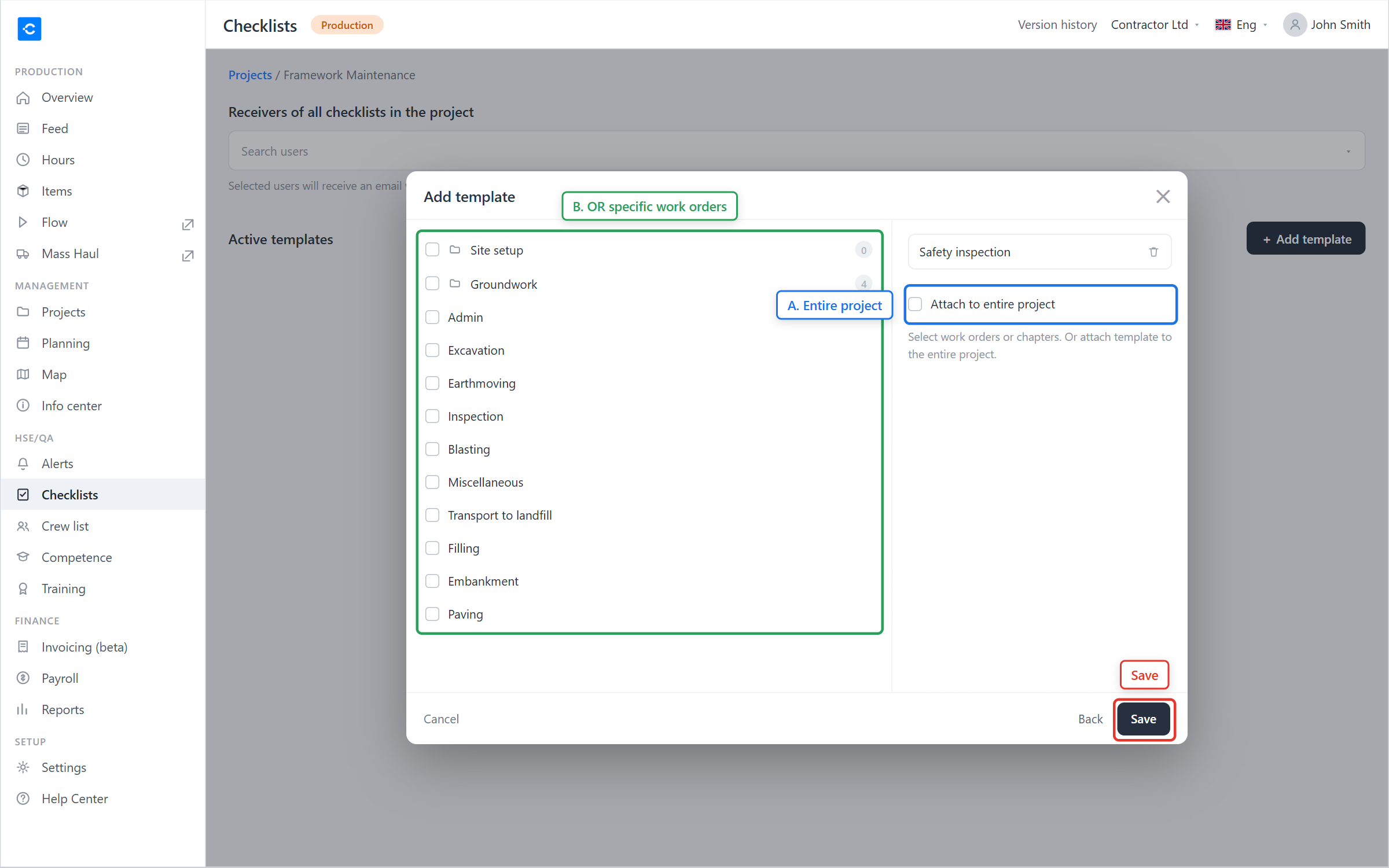 Choose the scope and save
If you selected several templates in step 4, the scope here applies to all of them by default. If you need fine-grained control (template A only on work order X, template B on Y), repeat the whole flow once per template.
After the checklist is attached
- Users see the template under Checklists in the app when they're logged in to the project (and, if you limited the scope, standing on the right work order)
- You can attach more templates later without affecting completed checklists — completed instances are separate from the template attachment
- If you remove a template from the project, the ability to start new checklists from it disappears, but already-completed checklists are kept and can still be opened. Removed templates move to "Deactivated checklist templates" further down the page, and can be re-attached from there.
- Users who have the Ditio app open may need to pull down to refresh the list before the templates appear
ℹ️Frequently asked questions
Users don't see the checklist in the app — what's wrong?
By far the most common reason is that the worker isn't checked in on the right project. Checklists show in the app based on which project (and possibly work order) the user is checked in on right now — ask them to check out and back in on the correct project.
Other possible causes:
- The user doesn't have project access — check the user's project access.
- You've limited the checklist to a work order the user isn't checked in on. Ask the user to check in on the right work order, or widen the scope to the entire project.
- App cache. Ask the user to pull down the checklist list to refresh, or close and reopen the app.
Can I attach the same template to several projects at once?
Yes, repeat steps 1–5 for each project. There is no bulk function in Ditio today — each project has its own checklist attachments.
What happens if I publish a new version of the template?
Existing attachments update automatically — the next time someone starts a new checklist from the template, they get the latest version. Checklists that are already filled in keep the version they were started with.
Can I change from "entire project" to a "work-order filter" later?
Yes. Go back to Project settings and click "Change work orders" on the template row in the list of active templates, then adjust the scope. Changing the scope requires an administrator, or a super user who is the foreman on the project. The change applies going forward — checklists started before the change are not affected.
Why can't I find my template in the list in step 4?
- The template may not be created yet. Go to Checklists → View checklist templates.
- The template was created in another company. Checklist templates are company-specific. (Companies within the same company structure — parent/subsidiary — share templates.)
- You lack the required rights. Ask an administrator to help, or get your role upgraded.
Do subcontractors get access to the checklists?
Yes — anyone with project access (including subcontractors) sees the templates attached to the project, as long as the scope fits the work order they're on, and as long as the subcontractor is registered under the project's company.
❓ Have more questions?
Check out our help center: Help center
Or contact Ditio Support:
📞 +47 941 47 041
📧 support@ditio.no